Field guide · 2026-10-20
PDF to JSON on Mac for Scripts and RAG Pipelines
I built PDFTrail so a language model could read Indian annual reports without the reports leaving my Mac. The model was never the hard part. The hard part was the step before it, where a file stops being a PDF and becomes something a program can parse. For a script or a RAG pipeline, pdf to json mac is that step.
A script that reads a PDF directly needs a PDF library, and then it has to rebuild the structure itself. The PDF gives it runs of text pinned to positions on a page. There is no table in the file, only fragments that happen to line up. Every script that wants a row has to decide which fragments belong together. Converting to JSON moves that decision to one place, once, and leaves your code with a file it can load.
That also creates a risk. Your pipeline now trusts the JSON. If the conversion misplaced a column, every run downstream repeats the mistake, and it does so quietly. So the habit I would build is this. Convert one representative file, read the result with your own eyes, and only then write code against it.
I won't list the fields of the JSON here. Your own export is the reference, and it is the file your code will see. Open it, read the keys, and write your parser against what is in front of you.
For a RAG pipeline the same rule applies to chunking. Decide the unit you retrieve, whether that is a page, a table or a stretch of text, from what your export actually offers and not from what you wish it offered. If the file lacks something your retrieval needs, such as a page reference, you will see it on the first read, and you can decide then what to do about it. Keep the source PDF beside the JSON, so a retrieved chunk can be checked against its page.
If you already work in Python, there is another route. The pdfplumber README describes a command line with a format option that can be set to json. It says the json format returns more information, including PDF-level and page-level metadata. That route needs a Python setup and some code. I would take it if you are happy to write and maintain the script yourself. The comparison of camelot, pdfplumber and a Mac app sets the options side by side.
PDFTrail is my app, and it is for the person who wants the file without the code. It runs on an Apple Silicon Mac with macOS 12 or later. JSON export is free with no limit, so you can convert, look, adjust and convert again without spending anything.
The pdf to json mac steps
- Click Open PDF and select one file, the one with the awkward table. Save the batch for later.
- Choose JSON as the output format and run the conversion.
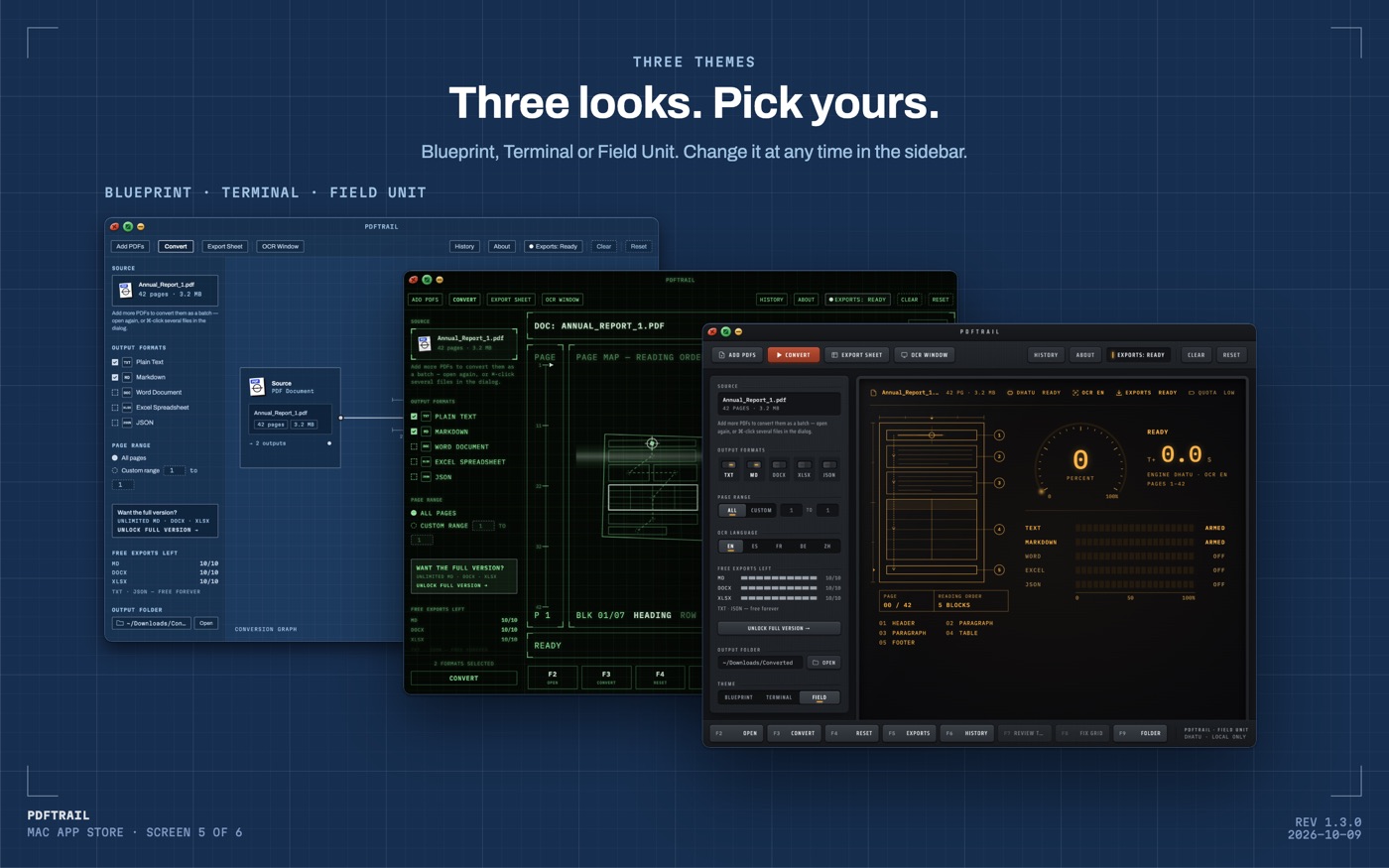
- Once it has finished, open Table Review. It opens by itself if a page was partly read or not read. The Review tables button opens it at other times. Each table appears beside the page it came from.
- Where a table is wrong, open the grid editor. Set the lines right, add any that are missing, or mark out the region by hand. Test the grid, save it, then press Accept and re-export.
- Open the .json file in a text editor. Read its structure from the top before you write any code.
- Run your script on this one file. Pick five values from the output and compare each with the PDF.
- Convert the rest. Select every PDF in the Open dialog, and the whole queue converts in one run.
A saved fix belongs to that PDF and is reapplied when you convert the same file again. For a clean start, tell the app to ignore saved fixes.
What I check before a pipeline sees the file
Count first. If the file lists tables, count them and compare the number with what Table Review showed for the same pages. A missing table is easier to see in a count than in a long file.
Then look at tables that cross pages. The page-joining added in version 1.3.0 is written for the Excel, Word and Markdown files. For JSON I would check by hand whether a long table arrives as one piece or two. A split table looks like two tables to code, so this is worth a look.
Then compare values. Take a few figures from different pages and check each against the PDF. Do this with the JSON open next to the page, not from memory.
A scanned PDF needs a closer look. The pages hold pixels, so OCR runs on your Mac before the structure is built. OCR is good but not infallible, and a script cannot tell a misread digit from a real one. Only you can, with the page in front of you.
For the chat-window side of the same job, the PDF to Markdown guide covers loading a file into a model. For the mechanism underneath all of these formats, read how PDF table extraction works.
Back to the reason
I wanted a model to read the reports, and I wanted the reports to stay on my machine. The conversion is the step that makes both true.
Open the file before your code does.
FAQ
Is JSON export free in PDFTrail?
Yes. Plain text and JSON export are free with no limit. Markdown, Word and Excel each have 10 free exports, and the full version is a $24 one-time unlock, no subscription.
Does converting PDF to JSON on a Mac need the internet?
No. Everything runs on your Mac. Nothing is uploaded, and there is no account.
Can I convert many PDFs to JSON in one run?
Yes. Click Open PDF, select all the files in the Open dialog, and every PDF in the queue converts in one run.
What if a table in the JSON is wrong?
Open Table Review, find the page, and compare the table with the page beside it. Fix the grid lines in the grid editor, save the fix, and press Accept and re-export to write the files again.
Does this work on scanned PDFs?
Yes. A scan has no text layer, so PDFTrail runs OCR on your Mac. OCR is good but not infallible, so check the digits against the page.
Related guides
- PDF to Markdown on Mac: A Guide for LLM Workflows
- Convert a PDF to Markdown for ChatGPT (No Upload)
- PDF to Markdown for Claude Projects
- PDF to Markdown for NotebookLM: Cleaner Sources
- Annual Report PDF to Markdown for LLM Analysis
Get PDFTrail
PDFTrail is on the Mac App Store — download it, try it on your own file, and pay only if it earns its keep.
GET PDFTRAIL — MAC APP STORE