Field guide · 2026-10-15
PDF to Markdown for NotebookLM: Cleaner Sources
Open a notebook in NotebookLM, which Google's own help pages now call Gemini Notebook, and look at the sources panel down the left side. Each file you add there becomes something the notebook reads and quotes back to when it answers a question. Add a PDF with a wide transaction table on it, and whatever structure survived into that file is what the notebook has to cite from. That is the whole PDF-to-Markdown question for NotebookLM in miniature: flatten the table before you add it, and the citation flattens with it.
NotebookLM will take the PDF directly. Its own support page on adding sources names PDF as one file type among several, alongside plain text, Word files, and CSV (Google's list). Copy and pasted text is a source type too, and that route is where most tables come apart. Pasting drops the position of every character and keeps only their order on the page.
Either way, a source that reads as one run-on line is still something NotebookLM will answer from. The reply arrives with a citation, and the citation points at that same run-on line, because that is genuinely what the source contains. Checking it means opening the source and finding the one sentence that used to be six rows of a table.
Why the Citation Lands on the Flattened Line
A PDF keeps no rows and no headings of its own. It keeps short fragments of text, each pinned to a spot on the page. A table is only fragments that happen to line up in columns when something draws them out for a screen. Paste that page into a text box, and the positions are gone. The fragments arrive in file order, a date next to an amount next to a balance, with no seam between them.
Uploading the PDF itself skips the paste step, but it does not settle the question of structure. NotebookLM reads the file its own way. A table that spans a page break, or sits inside a scanned image, is still a case where the source's own shape decides what a citation can point at. A Markdown file removes the guessing. A # marks a heading. A row of text between pipe characters marks one table row, in a fixed column order. That mark is plain text, so it survives being read as a source exactly as it was written.
The Real Options for Getting a Document Into NotebookLM
Paste the text. Fastest, and fine for a paragraph. A table pasted this way is the flattened line described above, so avoid it for anything with rows worth citing later.
Upload the PDF as-is. NotebookLM's own page describes a source as a copy of the file you import or upload. The whole document becomes that copy on Google's side, not just the part your question needs. For a public filing that is a fair trade. For anything you would rather keep off a server you do not control, it is not.
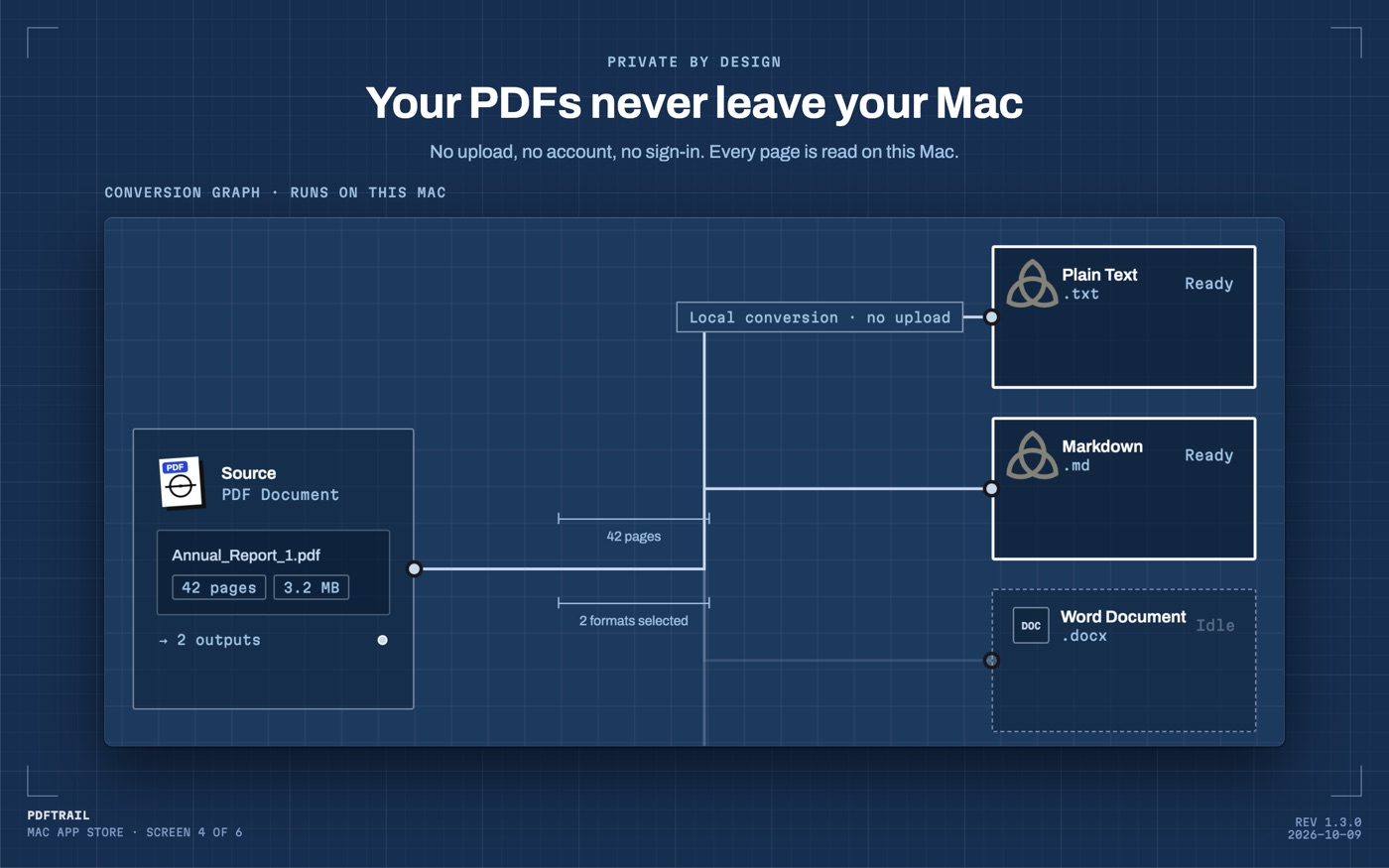
Convert it to Markdown first. PDFTrail is my app, and this is the route I use before anything private goes near NotebookLM. Convert the PDF on your Mac, trim the Markdown file down to the sections your question actually needs, and only the sections you keep become a source.
The PDF to Markdown NotebookLM Route, Step by Step
- Open PDFTrail, click Open PDF, and choose the PDF in the Open dialog.
- Convert to Markdown. PDFTrail reads what the file actually contains: the text layer, position by position, when the document is born-digital, or an OCR pass on the Mac first when it is a scan.
- Open Table Review. It opens on its own when a page's tables were partly read or not read. Confirm each row of a table landed as a row. If one did not, fix the grid and click Accept and re-export.
- Find the Markdown file in the output folder.
Open the exported .md file once it lands. Read the headings, and trim out whatever your notebook does not need to ask about. What is left is what you carry back to the sources panel.
Why the Row Survives the Trip
PDFTrail works out the table's structure from the geometry already sitting in the PDF: which fragments share a line, and where one column ends and the next begins. It writes that structure as Markdown: a heading marked with a #, a table row marked with pipes. Both are plain characters, not a printer's instructions. A parser reading that file for the first time sees the same marks a person does. A source built this way gives NotebookLM a row to cite, not a stretch of digits with no seams left to find.
Splitting a Long Document Into Several Sources
A single Markdown file with every section of a long report in it is still one source. One long source pushes everything you did not ask about into the same citation search as the part you did. Cut the file along its own headings instead. A segment note becomes its own .md file. A balance sheet becomes another. Add each one to the sources panel on its own. NotebookLM's own chat help page says you can select which sources in your notebook the model should use to answer your questions.
The annual report guide covers batch-converting a whole folder of filings at once. It is the same trimming problem at a larger scale, spread across several years and several files instead of one long document.
Back to the Sources Panel
The wide transaction table that started this is now a handful of sources, or one clean one. Each still has its own headings, and its own rows lined up under them. Ask the notebook a question about it, and the citation that comes back points at a row, not a paragraph you have to re-read three times to place. That is the whole difference a plain-text mark makes once a machine has to point at what it read.
The PDF to Markdown hub is the wider starting point for getting any PDF onto a Mac in Markdown form. The ChatGPT walkthrough covers the same conversion aimed at a chat window instead of a sources panel.
Check the citation against the source once, the first time. After that, you will trust the row because you already looked at it.
FAQ
Can I add a PDF straight to NotebookLM instead of converting it first?
Yes. PDF is one of the file types NotebookLM's own help page lists as a source. A wide table that crosses a page break may still read as one line once it is added.
Does a Markdown source change what NotebookLM can answer?
No. NotebookLM reads a Markdown file's headings and table rows the way it reads any other supported source, and a clearer source usually gets a clearer citation back.
Is it safe to add a confidential PDF to NotebookLM?
Adding a source uploads it to Google's servers. Converting it on your Mac first lets you choose which sections become a source, so the rest never leaves your Mac.
Do I need an internet connection to convert the PDF first?
No. PDFTrail reads and converts the file on your Mac, with no account and no upload, before you ever open NotebookLM.
Does this work with a scanned document?
Yes. A scanned page has no text layer, so PDFTrail runs OCR on your Mac. Table Review then lets you check the detected table after the conversion.
Related guides
- PDF to Markdown on Mac: A Guide for LLM Workflows
- Convert a PDF to Markdown for ChatGPT (No Upload)
- PDF to Markdown for Claude Projects
Get PDFTrail
PDFTrail is on the Mac App Store — download it, try it on your own file, and pay only if it earns its keep.
GET PDFTRAIL — MAC APP STORE