Field guide · 2026-10-01
PDF to Markdown for Claude Projects
Open a Claude Project and look at the panel beside the chat. That is the knowledge area: a place for documents the project keeps around, separate from any one conversation. I keep one for a company whose annual reports I keep coming back to, and whatever sits in that panel colours every question I ask afterward, not just the first one. A plain pdf to markdown claude conversion, done before the file goes in, is what keeps that panel worth reusing.
Add the report as a PDF, and it sits there as a PDF. A segment note with three years of numbers side by side reads fine on the page, because your eye lines the columns up. The file itself does not store a table. It stores short runs of text pinned to a position, and a chat that opens that document has to reconstruct the columns from scratch, on every question, in every session that draws on it. Get it wrong once and the project answers wrong every time after, quietly, because nothing flags the tangle as a mistake.
What the knowledge base actually is
Anthropic's own help center describes a project as a workspace with its own chat history and its own knowledge base. There, it says, "you can upload relevant documents, text, code, or other files." Claude, it adds, "will use them to better understand the context and background for your individual chats within that project."
That is the whole idea. Upload once, reuse across chats, instead of re-attaching the same file every time you open a new conversation. The same page notes that projects also take plain project instructions, alongside the documents, to steer how Claude answers inside that workspace.
That reuse is exactly why the format of what you upload matters more here than it does for a single one-off chat. A messy paste in an ordinary conversation costs you one bad answer. A messy file sitting in a project's knowledge base costs you a bad answer every time someone in that project asks about it, for as long as the file stays there.
The PDF you already have is not the problem you think it is
People assume a PDF is a document, in the way a Word file is a document, with headings and paragraphs Claude can just read off. It is closer to a printed page that happens to be searchable: the words are there, the row a table's numbers sat in is not. Uploading the PDF as-is works, because the project reads it directly. But the structure a table depended on has to be inferred fresh by whatever answers your question, and a report with several dense tables gives it a lot to infer.
Retyping the tables into the knowledge base avoids that, at the cost of an evening, and a workbook nobody wants to keep re-typing every quarter.
There is a plainer route. PDFTrail is my app, and I built it first to get my own annual reports into a shape a language model could actually parse, rather than upload the original filing and hope.
The pdf to markdown claude steps, before anything is uploaded
- Click "Open PDF" and choose the report PDF.
- Let it read the file. A report you downloaded carries its own text layer, read straight from the file, no OCR needed. A photocopied or faxed page has no text layer, so the app runs OCR on the Mac before it can find any tables.
- Check Table Review. Confirm each table's columns line up before you rely on the file. If a page needs a look, Table Review is already open when the run ends; otherwise click "Review tables".
- Open the Markdown file. For a wrong table, set its grid in the grid editor and choose "Accept and re-export" before you copy anything.
Why a Markdown file is the better long-term source
A Markdown table is a row of cells between pipe characters, with a line of dashes marking where the header ends. Those marks are plain text, so they hold their shape wherever the file travels, including inside a knowledge base a dozen future chats will read. A heading gets a # in front of it instead of a bigger font size nobody downstream can see. Once a document is in that shape, the structure does not have to be reconstructed by every chat that touches it. It was already written down.
There is a second reason to convert rather than upload the original file, and it sits apart from formatting. Once a PDF is in a project's knowledge base, the whole document is there, private notes and all. Converting it on your Mac first means you choose what goes in, page by page, rather than handing over the entire filing because one table in it was useful.
Trimming a long report before it joins the knowledge base
Open the exported .md file in a text editor before you add anything to the project. A full annual report can run past a hundred pages, and a project rarely needs all of it sitting in the background for every future chat.
Read down the headings first, since PDFTrail carries the report's own section breaks into the file. Copy out the segments you actually want on hand: the notes to the accounts, one management discussion, a single year's balance sheet, and save each as its own file rather than one long document. A knowledge base built from a few named sections is easier to reason about later than one file you have to reopen and search every time.
Add those sections to the project's knowledge area once they are trimmed, and leave the rest of the filing on your Mac. You can always convert and add another section later, if a question comes up that the ones already there do not cover.
Back to the knowledge area
The panel beside the chat now holds a handful of Markdown files instead of one long PDF. Each one still reads as headings and tables, not a page a chat has to puzzle over. Every question I ask that project from here on draws on those same files, and I am not retyping a segment table to get a straight answer a second time.
That panel is the part of a project that outlasts any single chat, so it is worth the extra ten minutes now. For the wider case of pasting a converted file straight into a single chat, see the PDF to Markdown for ChatGPT guide and the PDF to Markdown on Mac hub. For turning the same report into a spreadsheet instead of a knowledge base, the annual report to Excel guide covers that path.
Upload the sections you chose, not the whole filing.
FAQ
What is a Claude Project's knowledge base for?
It holds documents you upload once, so every chat you start inside that project can draw on them without you re-explaining the background each time.
Is it safe to add a confidential filing straight from a PDF?
Uploading sends the whole file into that project's knowledge base. Converting it on your Mac first lets you choose which pages actually go in.
Do tables survive the conversion?
Yes. PDFTrail rebuilds each table from where the text sits on the page and writes it out as a Markdown table, columns still under their headings.
Does this work on a scanned report with no text layer?
Yes. PDFTrail runs OCR on your Mac for a scanned page, and Table Review shows the table it found, so you can check it before you rely on the file.
Do I need an account or an internet connection to convert the file?
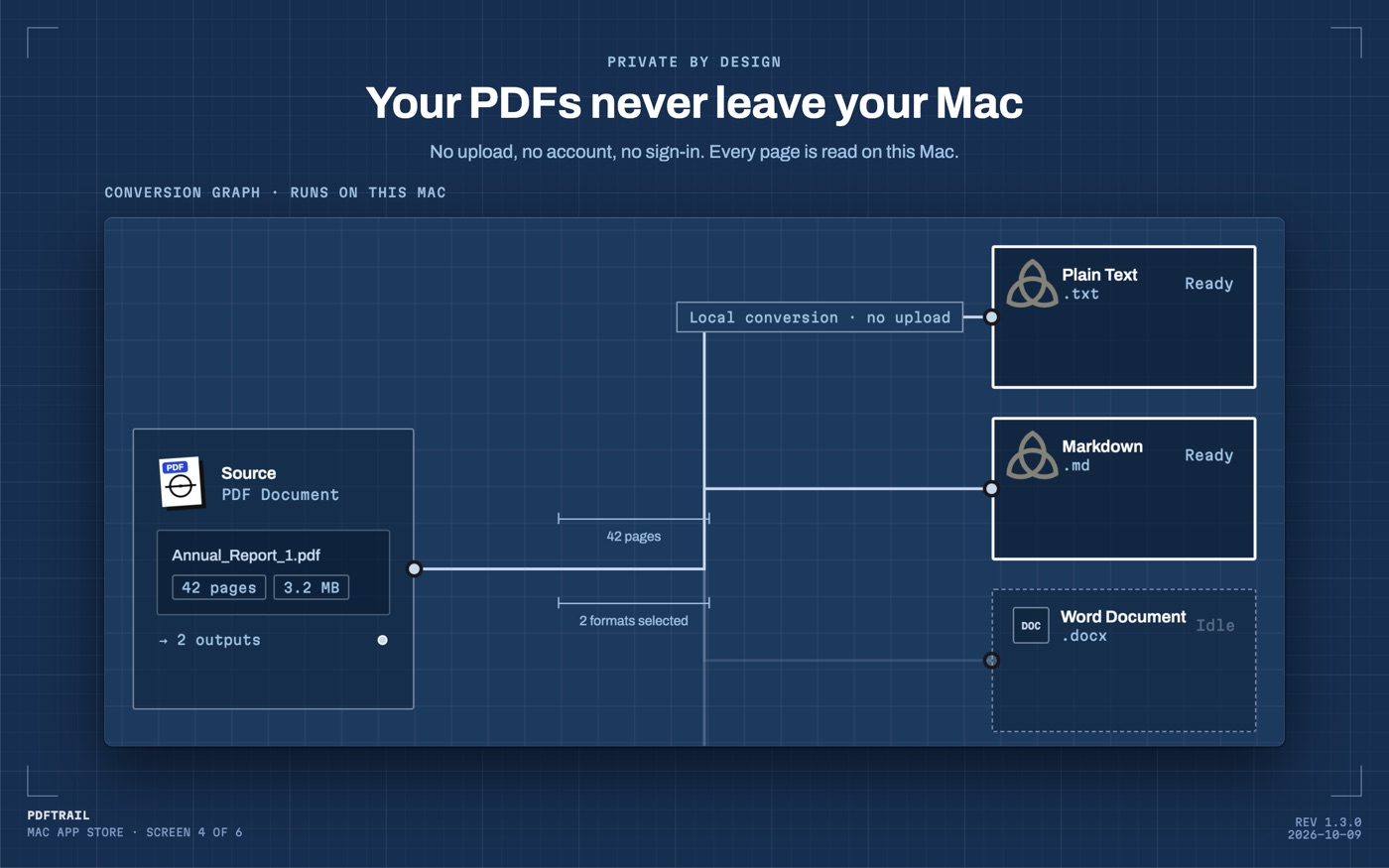
No. The conversion runs on your Mac, with no sign-up, and the PDF itself never has to leave the device to become a Markdown file.
Related guides
Get PDFTrail
PDFTrail is on the Mac App Store — download it, try it on your own file, and pay only if it earns its keep.
GET PDFTRAIL — MAC APP STORE