Comparison · 2026-09-30
camelot and pdfplumber vs a Mac App for PDF Tables
Camelot's own documentation opens with a plain promise: extract tables from a PDF "in just a few lines of code." That claim holds up. Camelot and pdfplumber are both Python libraries built to read a PDF's positioned text and turn it into rows and columns you can hand to pandas. Anyone typing camelot pdfplumber alternative into a search bar already has one of them running somewhere, in a script, in a pipeline. The real question is when a native app on the Mac earns a place next to that pipeline, or instead of it.
Read the docs page and you get the shape of the tool fast. Camelot detects a table one of several ways. Stream reads one held together only by whitespace, and Lattice reads one with ruled lines, with newer Network, Hybrid, and machine-learning modes for the cases in between. Installing it means a Python environment, plus the separate dependency steps its own docs walk through by operating system.
pdfplumber sits one layer lower. It hands you the positioned characters, words, and lines directly and leaves the row-and-column logic to you, or to a short script written on top of it. Neither tool asks you to trust a black box; both show you the geometry and let you decide the rule. That is worth respecting, and it is exactly why so many pipelines are built on one or the other.
What camelot, pdfplumber, and PDFTrail all do first
Strip away the interface and all three tools start at the same fact: a PDF never records a table as such. It keeps isolated pieces of text at fixed coordinates, plus an occasional ruled line where the page was printed with one. Camelot's Lattice mode finds those ruled lines and treats the boxes between them as cells. Its Stream mode looks instead at the gaps between text runs, the way a human eye reads a table with no visible grid. pdfplumber gives you both readings as raw data and expects you to write the rule yourself.
PDFTrail is my app. I built it to pull positioned text out of a PDF without opening a terminal. It runs the same underlying geometry work: rows and columns rebuilt from where the text actually sits on the page, with no mode to choose and no script to write.
camelot pdfplumber alternative: where the two paths split
The first split is who tunes the read. Camelot asks you to pick Stream or Lattice per document, sometimes per table, then adjust its parameters when a column runs together or a row splits in two. pdfplumber asks you to write that logic yourself, table by table. PDFTrail asks you to look at Table Review instead: after the conversion, the table it found sits next to the source page, and you check it before you rely on the file. One is a setting you tune once and reuse across a template. The other is a screen you open for each file you want to check.
The second split is the file itself. Camelot's documentation says plainly that it works only with text-based PDFs, not scanned documents. It describes a text-based PDF as one where you can click and drag to select the text in a viewer. A scanned statement, a faxed form, a photo saved as a PDF: none of those have a text layer to select. The docs do note further setup for image-based PDFs, beyond the main workflow. A scan gets OCR from PDFTrail instead, running on the Mac, with the detected table available in Table Review after conversion, since OCR is good but not infallible.
The third split is where the tool lives. Camelot and pdfplumber are libraries: you write a script, run it in a terminal, and read the result back as a DataFrame or a CSV. PDFTrail is a native app. Nothing to import, no Python version to keep straight, no terminal window between you and the exported file.
Who should stay with camelot or pdfplumber
If you are already writing Python, camelot and pdfplumber are the right tool, not a fallback you settled for. Anyone building a pipeline, feeding a database, or running the same extraction over hundreds of filings on a schedule wants that DataFrame, not an app window to click through by hand. So does anyone who wants pdfplumber's raw character positions directly, to decide the row-and-column rule in their own code rather than trust someone else's.
A single born-digital PDF and a Python environment you already have open is camelot's home ground. Reaching past it for a native app, for that one file, would be solving a problem you do not have.
The PDFTrail workflow, four steps
- Open the app, click "Open PDF", and choose a PDF. For a batch run, choose several at once, or open a folder in the dialog and select all the PDFs in it.
- PDFTrail reads what is already there: the text layer if the file has one, an OCR pass on the Mac if it does not.
- Compare the table in Table Review with the source page before you rely on the file. It comes up unprompted for a page that needs a look, and the "Review tables" button calls it up for any other page.
- Open whichever output you chose: Excel, Word, Markdown, JSON or plain text.
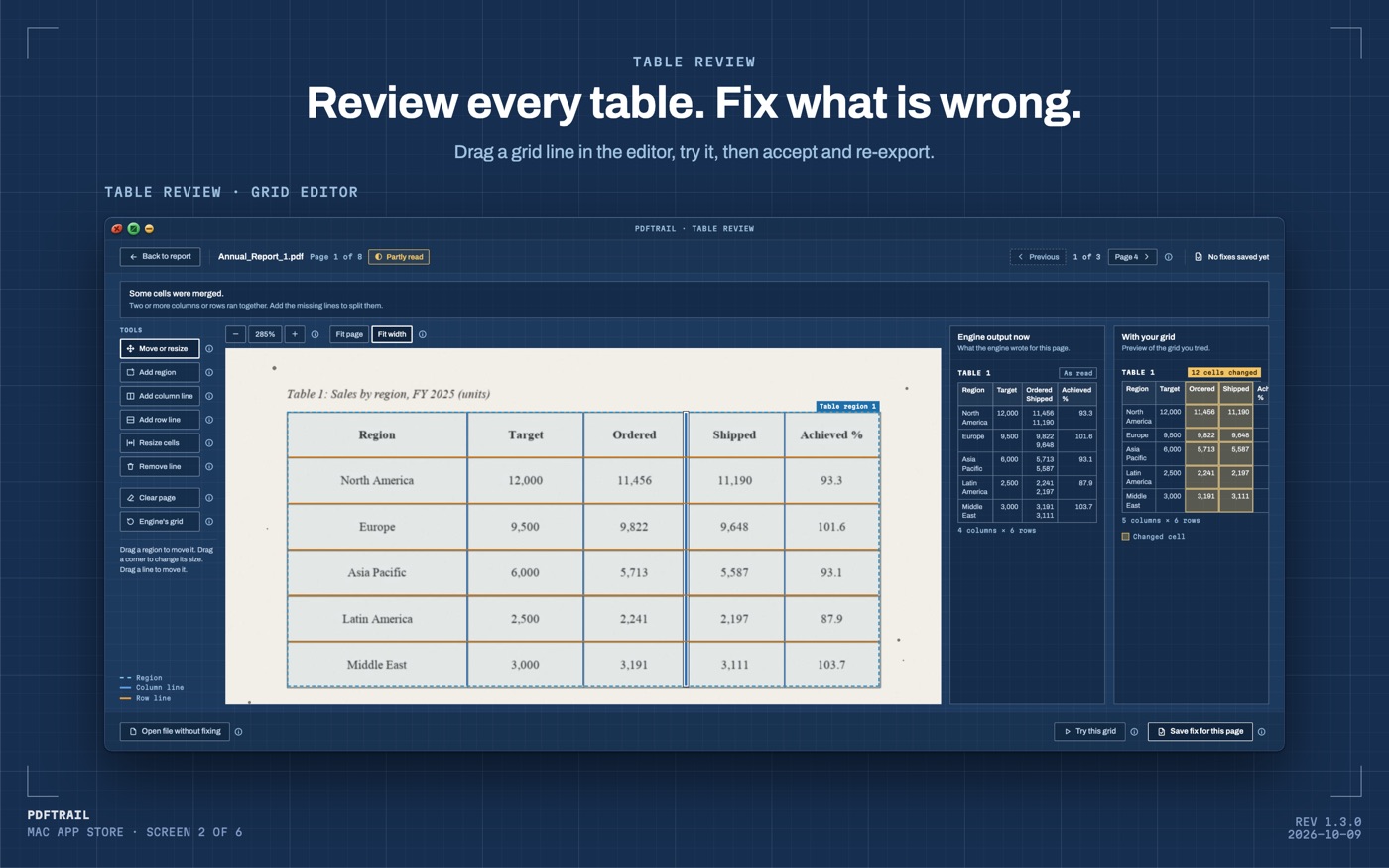
There is no mode to pick before step one, and no parameter to tune when a column runs together. In Table Review you drag the grid line into place instead. It opens by itself when a page needs a look, and from the "Review tables" button at any other time.
Back to camelot's docs
Open that documentation page again and the pitch still holds: a few lines of code, a choice of detection modes, a result you can hand straight to pandas. That fits a script, a pipeline, a repeatable job running somewhere unattended. It was never trying to be a Mac app, and it does not need to be one to be worth using.
If your file is a scan, or the job is a handful of statements you would rather not write a script for, that is where a native app picks up. The comparisons hub lines up several routes side by side, including Tabula, which shares camelot's own text-only limit but skips the Python setup. For the mechanism itself, how PDF table extraction works goes deeper into why a PDF holds no table to begin with, in any tool.
Camelot and pdfplumber will keep reading tables from a Python script, and that is a fine way to do it. This app exists for the files you would rather just open.
FAQ
Do I need to write Python code to use PDFTrail?
No. Click "Open PDF" and choose the file, and the app reads it on your Mac. Camelot and pdfplumber both need a script to do the same read.
Can camelot or pdfplumber read a scanned PDF?
Camelot's own documentation says it works only with text-based PDFs, not scanned documents. A scan has no text layer to select.
Does PDFTrail need Python or any other setup?
No. It runs on your Mac as a native app, with nothing to install and no account to create.
Who should keep using camelot or pdfplumber instead?
Anyone already writing Python, running a repeatable pipeline, or who wants a pandas DataFrame straight out of the extraction step.
Does PDFTrail cost anything?
It is free to try, with 10 free exports per format. The full version is a $24 one-time unlock, no subscription.
Related guides
- PDF to Excel on Mac: 7 Tools Compared Honestly
- Excel for Mac Has No From PDF Import: What to Do Instead
- Tabula vs PDFTrail: Extract PDF Tables on a Mac
- Adobe Acrobat Export PDF to Excel vs On-Device on Mac
Get PDFTrail
PDFTrail is on the Mac App Store — download it, try it on your own file, and pay only if it earns its keep.
GET PDFTRAIL — MAC APP STORE