Comparison · 2026-09-28
PDF to Excel on Mac: 7 Tools Compared Honestly
I make one of the seven tools on this page, and I'm going to tell you when not to buy it.
That's the stance up front, because a search for the best pdf to excel converter mac tends to turn up pages that are sales pitches wearing a comparison's clothes. Seven real routes get a fair look here, and the one I built gets the least generous treatment, not the most.
What decides the best pdf to excel converter mac route
Start with the page you're actually holding, not with an app. Is it born-digital, the kind you download from a bank or a billing system? Or is it a scan, a photocopy, a fax someone saved as a PDF? That single fact rules out some of what follows before you read another word. Then ask what the page holds: a public price list, or an account number and a year of transactions. Two of the seven routes below send your file to a server before handing anything back, so ask who must never see it too.
A price list on a company's public site is a different problem from a payslip or a client invoice. The first can go almost anywhere and cost you nothing but time. The second narrows the field before you've even opened a tool, because a route that needs an upload is off the table the moment the page is private.
Preview and Word: fine for text, not built for tables
Preview sits on every Mac already, and pulling text out of a PDF is one click away. Try it on a born-digital page and you get every word, in the wrong order. A PDF stores each fragment of text at its own coordinate on the page, not as a row in a table. Preview never grouped those fragments back into columns. This suits a page you plan to retype anyway, or one where the layout barely matters.
Word's "open PDF" import goes further: it rebuilds the page as an editable document you can revise. Word was built for paragraphs, so a table usually comes out as merged cells or a string of broken lines. If the prose around the table is what you actually want, this is the shorter path.
Neither route rebuilds a table from a scan. Preview can recognize the words on a scanned page, but it gives you text, not rows and columns, which is where both stop being candidates.
Neither tool checks its own work either. Whatever lands in your document is what you get, with no step in between that shows you which line came from which part of the page.
The Excel you already have won't do it
If the page is born-digital and the table is plain, the obvious move is to let Excel pull it in directly. On Windows, Power Query has a "From PDF" connector built for that. On a Mac, the connector isn't there at all, and Microsoft's own support forum confirms it; no amount of hunting through the ribbon turns it up. The walkthrough on Excel for Mac and PDF import covers what to do instead, route by route.
Tabula and Python: free, but they ask something of you first
Tabula is a free, open-source table extractor, and a serious option once your file is text-based. It runs on Java, which the Mac version includes, and it reads only PDFs that carry an actual text layer; a scan gives it nothing to work with. Comfortable with one extra install, and your statements aren't scanned? It's worth the half hour. The Tabula piece goes deeper on where it fits.
camelot and pdfplumber ask for more: a Python environment and a short script aimed at the file. Neither reads a scanned page unassisted either; both expect the same positioned text a born-digital PDF already carries. Already running Python for something else? Folding a PDF table into that pipeline is a small step. Starting Python from nothing just for this is a bigger ask than one table deserves.
Both libraries stay on your machine once installed, so the privacy question that shapes the rest of this page doesn't apply to them. What applies instead is time: the setup, and the debugging when a page's layout doesn't match what the script expected.
The question none of these tools can script around
Online converters solve the scanned-table problem that Preview, Word, Tabula, and the Python libraries can't touch: upload the file, wait, download a spreadsheet. For a public document with nothing private on it, that trade is reasonable. For a bank statement, a payroll sheet, or anything carrying a client's name, the file has to sit on a server you don't control before you see a result. I wouldn't send that kind of page to a site I can't name, and I'd want you to weigh it before you do.
PDFTrail answers that question by removing it. It runs entirely on your Mac, so a statement or invoice never leaves the device at any point in the conversion. PDFTrail is my app, and here's the case against it before the case for it. A single simple table, on a page you don't mind anyone seeing, goes faster and for nothing through Preview or an online converter.
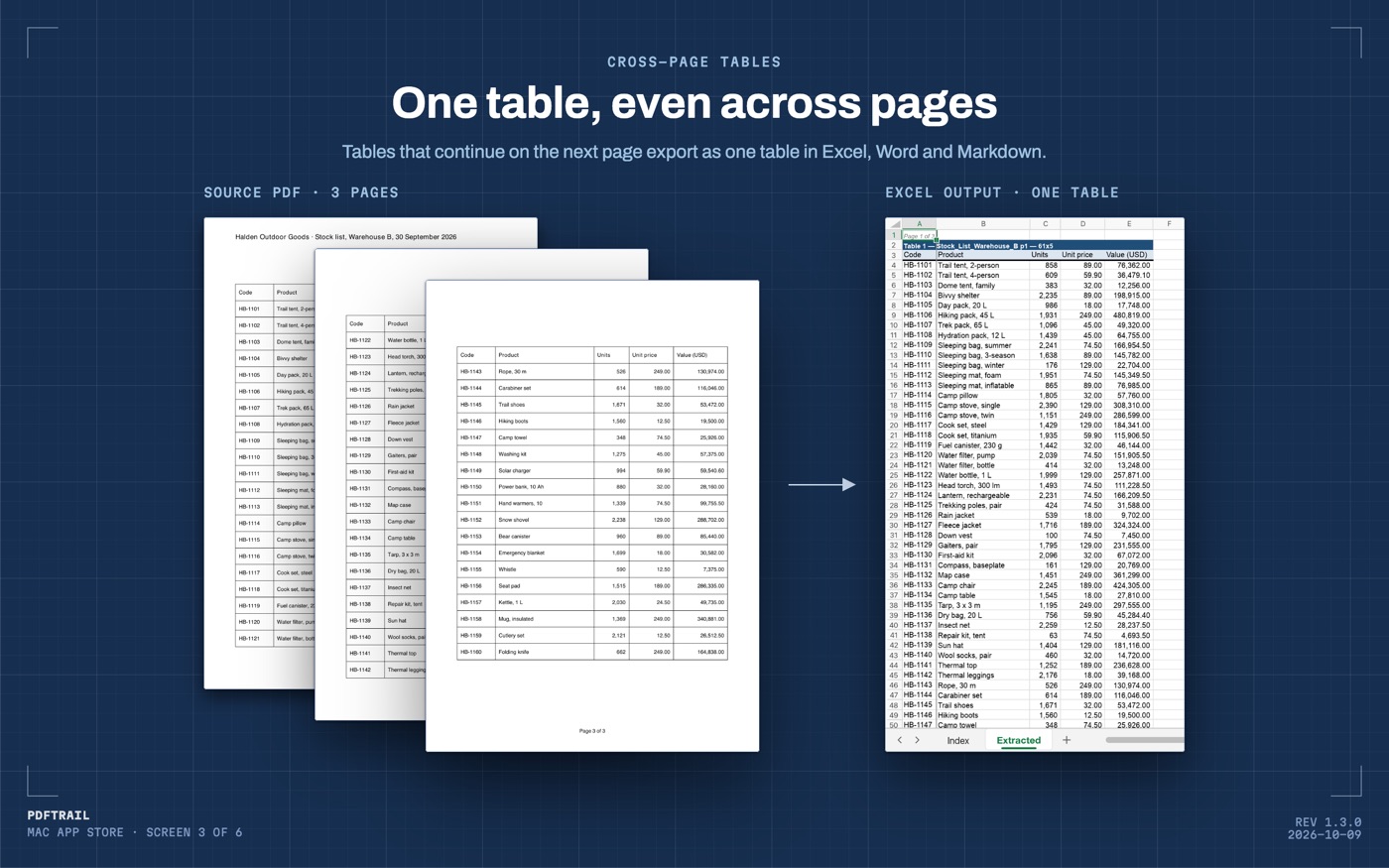
Where the $24 one-time unlock earns its place is the harder file. A born-digital PDF gets its text read straight out of the file, position by position, with no OCR guessing involved. A scanned page gets OCR on your Mac. Afterwards, Table Review shows each table next to its page, so you can catch a misread digit before you rely on the file. A folder of a year's invoices runs through in one batch pass instead of one file at a time.
Back to the page in front of you
None of the seven routes matters until you look at your actual file. Open it first. A text layer keeps most of the options above on the table, and the choice comes down to Java, Python, an upload, or an app, whichever cost you'd rather pay. No text layer, and three of the seven are already out, leaving online converters and something built to run OCR locally and let you check what it found.
Either way, count the rows in the spreadsheet against the rows on the page before you trust either one. Match a total from the sheet against a total printed on the page, too, whichever tool produced it.
The PDF to Excel guide covers the born-digital route on its own, for the file that needs fewer decisions than this one did. Seven tools, one page, and the page always gets the final word.
FAQ
What is the best pdf to excel converter mac users should try first?
Open your file first. A short, public, text-based table suits Preview or an online tool. A private file or a scanned page needs something built for both.
Does Excel for Mac import PDF tables on its own?
No. The Power Query "From PDF" connector only ships on Windows, so Excel for Mac has no built-in way to pull a table from a PDF.
Is Tabula still worth installing?
Yes, if your PDFs carry a text layer. It runs on Java, which the Mac version includes. It has nothing to offer a scanned page.
Do I have to upload my file to convert it?
No. Preview, Word, Tabula, camelot, pdfplumber, and PDFTrail all run on your Mac. Only the upload sites send the file anywhere.
What does PDFTrail cost, and is it worth it over the free routes?
It's free to try, with 10 free exports per format. The full unlock is $24 once, and it earns its keep on scans and stacks of files, not on a single simple table.
Related guides
- Excel for Mac Has No From PDF Import: What to Do Instead
- Tabula vs PDFTrail: Extract PDF Tables on a Mac
- camelot and pdfplumber vs a Mac App for PDF Tables
- Adobe Acrobat Export PDF to Excel vs On-Device on Mac
Get PDFTrail
PDFTrail is on the Mac App Store — download it, try it on your own file, and pay only if it earns its keep.
GET PDFTRAIL — MAC APP STORE