Comparison · 2026-10-13
Adobe Acrobat Export PDF to Excel vs On-Device on Mac
Open Adobe's own help page for desktop Acrobat, and the Convert to Excel dialog offers three choices: one worksheet per table, one worksheet per page, or the whole document as a single sheet. That page is a fair starting point for anyone who wants a PDF's numbers in a spreadsheet on a Mac. The real question sits one layer down: which of those three settings fits your file, and where does the file sit while you decide.
What the Acrobat export PDF to Excel Mac settings actually do
Acrobat made the PDF format, and its Convert to Excel tool reflects that history. The dialog lets you choose one worksheet per table, one worksheet per page, or a single sheet for the whole document. It also sets the decimal and thousands separator, so the numbers read the way your locale expects. A toggle turns on text recognition, so a scanned page gets read during the conversion, as Adobe's own help page lays out.
Three settings sound like a small detail, until you have opened a fifty-page annual report and watched it land as fifty separate worksheets when you wanted one.
A page with two small tables side by side, a header block, and a paragraph of notes needs the per-table setting, not the per-page one. Acrobat lets you pick the shape that matches the document, rather than accepting whatever shape a converter decides for you.
None of that needs a price or a plan name here. If Acrobat is already open on your Mac for other work, and you also need to redact a page or add a signature, Convert to Excel is one menu away. That is reason enough to stay in the tool you already have.
Acrobat is a capable tool, and a lot of people already own it for a dozen other PDF jobs. Export is one more item on a menu they already use. Nobody needs to be talked out of a tool that does the job and sits on their Mac already.
Adobe's free online converter is a separate route
Desktop Acrobat is not the only door Adobe opens. Its free online PDF to Excel tool asks for nothing but a browser and the file itself: no purchase, no install. It is also a different route, through a different set of hands.
Adobe says so on its own page: "Your file will be securely handled by Adobe servers and deleted unless you sign in to save it."
Read the rest of that page before you use it. That is not a mark against Adobe. Any online converter has to say something close to it, because the file has to leave your Mac to reach the server doing the work. Uploading is the trade every online converter makes, worth knowing before you send a bank statement or a filing to one.
I would rather keep a document with account numbers on the machine in front of me. That is a preference, not a rule everyone needs to share.
What an on-device converter does instead
PDFTrail is my app, and it takes on a narrower job than Acrobat: read a PDF's tables and hand you a spreadsheet, on the Mac, with no server in the loop. A born-digital PDF, the kind a bank or broker generates directly, already carries its text as positioned characters. PDFTrail reads that position data straight from the file, works out which characters share a row and where the columns break, and builds the table from that geometry. No OCR guessing, because none is needed.
A scanned page is different. It is pixels, not text, so the app runs OCR on the Mac first. Either way, PDFTrail writes the files when the conversion ends. You then check the tables against the source page before you rely on the file. That check is the same for a downloaded statement and a photocopied one. Only the reading method underneath it changes.
There is no worksheet-per-table setting to pick here. The Excel file has an Index sheet, one row per table, and an Extracted sheet that holds the tables with their labels. PDFTrail looks at the geometry of each page on its own and decides where one table ends and the next begins, then writes the files. Table Review shows each table it found next to the page it came from. You are not choosing a shape in advance. You are checking the shape it found.
The steps, on your Mac
- Click Open PDF and select the file you want in the Open dialog.
- Convert to Excel (.xlsx) and wait for the read: direct text extraction for a born-digital file, on-Mac OCR for a scan.
- Check each table against its source page in Table Review. It opens by itself when a page needs a look. At any other time, the toolbar's Review tables button opens it.
- Fix a wrong table in the grid editor, then click Accept and re-export. Or open the .xlsx as it is.
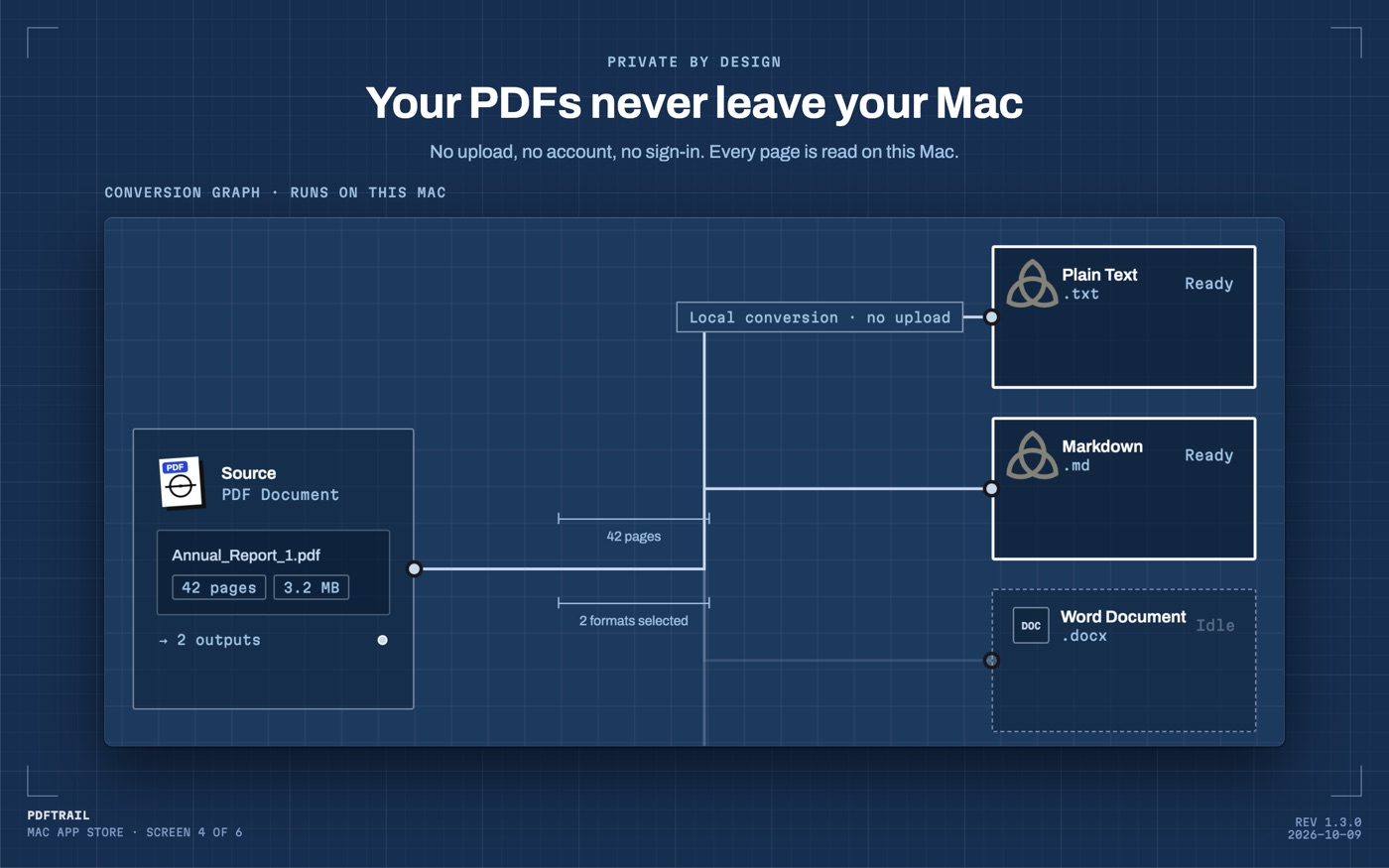
To convert a folder of statements or filings, open it in the dialog and select all the PDFs in it. Batch conversion works through the whole queue in one run. Table Review opens by itself on any page that needs a look.
Back to that settings page
Adobe's Convert to Excel dialog is still the right place to start if Acrobat is already open on your Mac for other reasons. Pick one worksheet per table for a file with several small tables, one per page for a long report, or the whole document for anything simpler. If you would rather keep the file off any server, and the job is tables and nothing else, that is the gap an on-device converter fills.
For the wider field, the full PDF to Excel comparison covers Preview, Word, Excel itself, Tabula and the Python code libraries. Acrobat sits alongside them as the one tool built by the company that made the format in the first place, and it is worth its place on that list.
Neither route is the wrong one. Someone with a single annual report and Acrobat already installed is better off using what they have than downloading anything new. Someone with a folder of statements every month, who would rather the file never left the Mac, has a narrower need that a narrower tool answers more directly.
Check the export before you trust it, whichever tool built it.
FAQ
Does Acrobat's Convert to Excel need an upload?
Adobe's free online converter needs one: its own page says Adobe servers handle the file. Desktop Acrobat's Convert menu is a separate tool, and Adobe's help page describes its settings.
Do I need Acrobat to get a PDF's tables into Excel?
No. An on-device app such as PDFTrail reads the file directly on your Mac, with no Acrobat installation needed.
What does Adobe's online converter do with my file?
Its own page states that the file is handled by Adobe's servers and deleted unless you sign in to save it.
Does PDFTrail need an internet connection to convert a PDF?
No. Everything runs on your Mac, so conversion works with no internet connection.
Can desktop Acrobat handle a scanned PDF too?
Yes. Its settings include a text recognition toggle for scanned pages, alongside the worksheet and separator choices.
Related guides
- PDF to Excel on Mac: 7 Tools Compared Honestly
- Excel for Mac Has No From PDF Import: What to Do Instead
- Tabula vs PDFTrail: Extract PDF Tables on a Mac
- camelot and pdfplumber vs a Mac App for PDF Tables
Get PDFTrail
PDFTrail is on the Mac App Store — download it, try it on your own file, and pay only if it earns its keep.
GET PDFTRAIL — MAC APP STORE