Engine notes · 2026-09-29
Extract Tables from PDF Without Uploading: Why It Matters
The file picker is open, and a document sits there waiting to be chosen: a statement with an account number printed in the header, a few pages of transactions under it. One click sends it to the converter site's server. Nobody standing in that moment can answer the one question that matters: what happens to the file after that click. This is a piece about how to extract tables from PDF without uploading a document like that one at all.
Most PDFs are not like this one. A public annual report, a spec sheet, a menu — pick any of those and the click is nothing. The document I'm describing is not most PDFs, and neither, eventually, is the next one you'll be asked to convert.
I built PDFTrail to read Indian annual reports into a language model, and those reports were public. I still would not upload them, because the habit I wanted was "never," not "only sometimes." A filing you'd hand to a stranger on the street is fine on a server. A statement is not, and the point of a fixed habit is that you don't have to judge each file fresh under time pressure.
What "upload" does to a file, in order
Click the button and your PDF stops being only yours. A copy travels off your Mac and lands on a machine that belongs to someone else, running software you have never seen. That machine processes the file, and somewhere in its storage a copy sits for a period nobody can name from the outside. The site's privacy policy describes today's handling. It can change tomorrow, and a file you sent last year does not get called back when it does. None of this requires bad intent from the operator. It only requires that you cannot inspect the server, and a document you cannot get back is a document you have to trust someone else with, permanently.
That is the mechanism behind the word "upload." It is not mysterious, and it is not usually a problem. It is a problem exactly when the document carries something you would mind a stranger reading.
Which files are fine, and which never are
A public annual report is fine, because it is already public; nothing on that page is a secret from the server or from anyone else. A restaurant menu, a product spec, a government form with no personal fields filled in — these travel the same way. If you would post the file on a forum without a second thought, an upload site costs you nothing.
A bank statement is not fine. It carries an account number, a running balance, and a record of everywhere you spent money in a month. A tax form is not fine, for the same reason with different numbers. A signed contract names both parties and the terms they agreed to. A medical record describes someone's body. Any file with a client's details in it belongs to that client, who never agreed to a third server holding a copy. None of these should reach a server whose owner you cannot name.
The local routes, and the one I built
Tabula has done this job locally for years. It is a free, open-source extractor that needs Java, which its Mac version includes, and it talks only to a page in your own browser, never the internet. It suits someone who wants the tool once and doesn't mind a Java-based tool.
pdfplumber does the same work from a script. Its own README puts it plainly: it will "plumb a PDF for detailed information about each text character, rectangle, and line," with table extraction built in. It fits anyone comfortable writing a few lines of Python, especially against many files run the same way.
PDFTrail is my app, and it exists for the person who wants neither a Java tool nor a script: open the file, get the table, done. It reads the text and its position straight out of the PDF and works out the rows and columns before writing anything.
How to extract tables from PDF without uploading, step by step
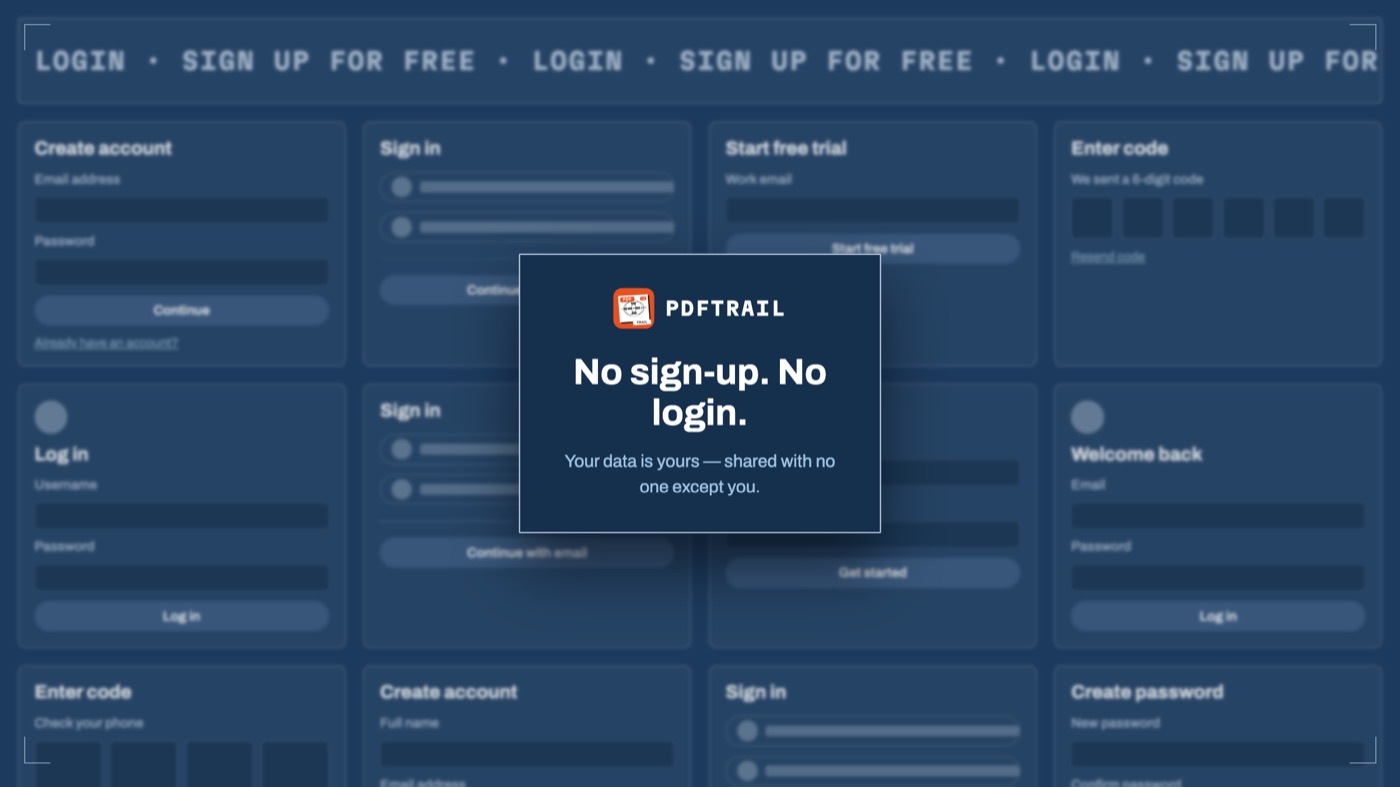
- Click "Open PDF" and choose the file. No sign-up form appears, because there is no account behind it.
- Let the app read the file. A born-digital PDF, the kind produced by software rather than a scanner, gets its text read directly, position by position, with nothing to guess at.
- Check Table Review after the conversion. When a page needs a look, it is open before you ask; at other moments, click the "Review tables" button. This is where you confirm the rows and columns landed where the printed page says they should.
- Open the file in each format you picked, from Excel to plain text. It is written straight to your Mac.
A scanned page with no text layer gets OCR instead, and that OCR runs on the Mac too; the image never leaves the machine to be read somewhere else. OCR is good but not infallible, so the review step still applies before you trust a number.
What "on-device" means here, specifically
Nothing about converting a file in PDFTrail needs a network. Turn off Wi-Fi and it still reads the PDF, still finds the tables, still writes the export. There is no account to make, so there is no server-side record of you tied to the file at all. The PDF to Excel guide covers a general conversion end to end. How a PDF's table gets rebuilt covers the mechanism underneath all of this: a PDF stores positioned text, not a grid, and something has to reconstruct the grid from those positions. For a document type where the stakes are sharpest, the bank statement guide walks through the same on-device route.
Back at the file picker
Nothing about the mechanics changes between a menu and a bank statement. The server does not know which one you sent; it treats both the same. The difference lives entirely in what the document says about you, and that difference is the whole reason to keep a local route ready before you need it.
So the picker opens, the statement sits there, and the choice this time is a local tool instead of the click. The next document might be public. This one has your account number in it, and that's reason enough to keep it on the Mac.
FAQ
What actually happens when I upload a PDF?
A copy of the file moves onto a server you cannot see, running software you cannot inspect, under a policy that can change after the fact.
Is it ever fine to upload a PDF for table extraction?
Yes. A public annual report or a restaurant menu carries little risk if it lands on a server you don't know.
Which documents should I never send to an online converter?
Bank statements, tax forms, signed contracts, medical records, and anything holding a client's details.
Can I extract PDF tables without any internet connection at all?
Yes, with a tool built to run locally. PDFTrail converts on your Mac with Wi-Fi off; nothing needs to reach a server.
What free tools extract PDF tables without uploading the file?
Tabula runs locally but needs Java. pdfplumber is a Python library for the same job, run from a script on your own machine.
Related guides
- Why a PDF Has No Tables (and How We Find Them Anyway)
- Before and After: Teaching Our Engine to Read Bad Scans
- PDFTrail 1.2: Real Excel Tables from Scanned Pages
- PDFTrail 1.3: One Table Across Pages and Table Review
Get PDFTrail
PDFTrail is on the Mac App Store — download it, try it on your own file, and pay only if it earns its keep.
GET PDFTRAIL — MAC APP STORE