Field guide · 2026-09-12
How to Convert a Bank Statement PDF to Excel on Mac
You have a folder of bank statement PDFs and you need the transactions in a spreadsheet. Maybe it's tax season. Maybe your accountant asked for twelve months of activity in one file. Maybe you just want to see where the money went.
Every obvious route is bad. Retyping a year of transactions by hand takes hours, and you will make mistakes — a transposed digit in a balance column is the kind of error you find three weeks later. Copy-paste from Preview looks promising until you paste: the columns collapse into one long line, dates and amounts and merchant names all run together, and you spend more time repairing the paste than typing would have taken. And the free online converters that dominate the search results ask you to upload the document first. A bank statement is exactly the document you should never upload to an unknown server. It carries your account number, your balances, and a record of every merchant you've paid — a fairly complete picture of your financial life, handed to a website you know nothing about.
The short answer: the reliable way to convert a bank statement PDF to Excel on a Mac is a converter that runs entirely on your machine, reads the text already embedded in the PDF, and lets you check the table after conversion, before you rely on the file. That's what I'll walk through below — including when the other options are actually fine.
Your three real options on a Mac
1. Manual entry or copy-paste. For one statement with fifteen transactions, honestly, just type it. You'll be done in ten minutes and you'll have eyeballed every number on the way in. Copy-paste from Preview is worth one attempt on a very simple statement, but most bank layouts defeat it — PDF stores text as positioned fragments, not as a table, so the clipboard loses the column structure.
2. Online converters. These work, and for documents that don't matter — a public report, a product spec, a restaurant menu — they're a fine free option. I'd use one for those without hesitation. The cost is that your file travels to someone else's server, and their privacy policy is whatever it says today. For a bank statement, that trade is not worth making at any price, let alone to save $24.
3. A native on-device converter. An app that runs on your Mac, reads the PDF locally, and writes the .xlsx locally. Nothing travels anywhere. This is the right tool when the document is sensitive or when you have a stack of them. PDFTrail is one of these — it's my app, so weigh that as you read on — and it converts PDFs to Excel, Word, Markdown, JSON, and plain text entirely on-device.
Converting a statement with PDFTrail, step by step
The flow is short:
- Open the statement. Click Open PDF and choose the PDF.
- Let it read the file. If your statement was downloaded from your bank's website, it's a born-digital PDF — the text is already in the file. PDFTrail reads that text layer directly, with the position of every character. There's no OCR step and no guessing about what a character might be; the characters are simply read out of the file.
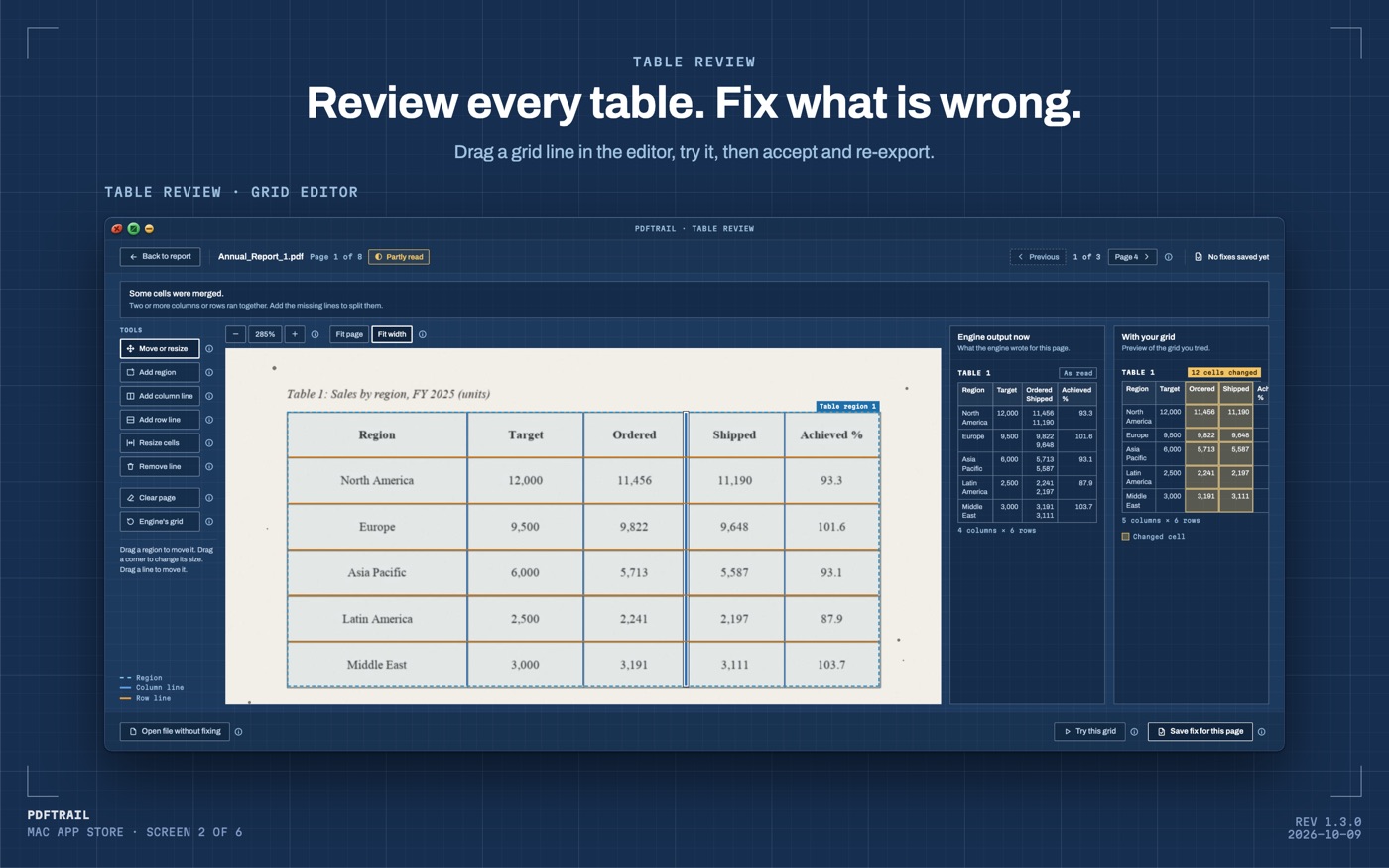
- Review the detected tables. After the conversion, Table Review shows you the tables it found, next to the page. It opens by itself when a page needs a look, and the Review tables button opens it at any time. This is the step I'd never skip with financial data. Scan the transaction table, check that dates landed in the date column and amounts in the amount column, and confirm the row count looks right.
- Open the .xlsx file. You get a spreadsheet with rows and columns intact — one transaction per row, one field per column — ready for Excel or Numbers. If a table was wrong, fix it in the grid editor and choose Accept and re-export.
If your statement is a scan — a photographed or photocopied page with no text layer — the app runs OCR instead, on your Mac. OCR reads an image of text, and it's good but not infallible; that's exactly why the review step exists. Check the numbers before you trust them. For a whole folder of statements, batch conversion handles them in one pass, so twelve months of PDFs becomes twelve spreadsheets without twelve rounds of clicking.
Why the rows come out intact
A PDF doesn't contain a table. It contains text fragments, each with coordinates: this string at this x, that number at that y. PDFTrail reads those positioned fragments and reconstructs the table from the geometry — which fragments share a row, where the column boundaries fall. Because it works from the text that's already in the file, a born-digital statement never passes through OCR at all; there's no step where a rendered picture of an "8" gets misread as a "3". The failure modes that remain are structural ones — an unusual layout the detector misjudges — and those are visible in the review step, not buried in the numbers.
FAQ
Is it safe to upload bank statements to online converters?
I wouldn't. A bank statement contains your account number, your balances, and a log of your spending. Uploading it means trusting an unknown server to receive, process, store, and eventually delete it — and you can verify none of those steps. Use online converters for documents you'd be comfortable posting publicly. For financial documents, convert on your own machine.
Can Excel open a PDF directly?
Not meaningfully. Excel for Mac has no PDF import. Word can open a PDF and attempt a conversion, but it's built for prose and usually mangles tables. Windows Excel does have Power Query's "From PDF" connector, which can extract tables and is worth knowing about — but it isn't available in Excel for Mac, so it doesn't help here.
Does this work with scanned statements?
Yes. Scanned pages have no text layer, so PDFTrail runs OCR on-device. OCR is good but not infallible, which is why the app has Table Review, where you check the detected tables against the page after conversion.
Do I need an internet connection?
No. Everything runs on your Mac. Nothing leaves the device — no account, no sign-up, no cloud uploads.
How much does it cost?
It's free to try. The full version is a $24 one-time unlock — no subscription.
What formats can I export to?
Excel (.xlsx), Word (.docx), Markdown, JSON, and plain text. For bank statements, .xlsx is usually what you want.
Get PDFTrail
PDFTrail is on the Mac App Store — download it, try it on a statement, and pay only if it earns its keep.
GET PDFTRAIL — MAC APP STORE