Field guide · 2026-10-21
Extract One Table from a Long PDF on Mac
One file I tested PDFTrail on while I built it was a loan application of 174 pages from an Indian public-sector bank, scanned from paper. It went into Markdown and Word, and then I checked the key identification numbers against the pages by hand. That was a check of the numbers that mattered, not of every line. You check the few pages that matter. That is the whole method to extract table from PDF Mac files of any length: find the page, convert, and look at that one table next to its page.
The obvious first move is to select the table in Preview and copy it. It fails for a plain reason. A PDF keeps its text as separate fragments at coordinates, with no table anywhere in the file, so the clipboard hands Excel a loose stream with no rows in it. The second obvious move is an online converter. That means sending all 174 pages to someone else's server to get back one table. I wouldn't do that with a loan file, and I don't think you should do it with yours.
What the alternatives do well
Preview is enough for a narrow table. Apple's Preview guide says that if you hold down the Option key while you select text, you copy a single column of a table. That gives you one column at a time. A table with eight columns means eight passes, and then you line the pieces up yourself.
Tabula is free, open source and needs Java. I compare it with PDFTrail in Tabula vs PDFTrail. If you write Python, camelot and pdfplumber are libraries for the same job, and they need a Python setup and code.
PDFTrail is my app, and the route below is the one I use. It converts the PDF you open, finds the tables in it, and shows them page by page. You then take the one you need.
Extract table from PDF Mac, step by step
- Find the page first. In Preview, type a word from the table's heading into the search field in the toolbar. Note the page number, and the page where the table ends if it runs on.
- In PDFTrail, click Open PDF and choose the file.
- Convert. A downloaded PDF has a text layer, so the text is read directly from the file, with the position of every character. A scanned PDF has none, so PDFTrail runs OCR on your Mac.
- Let the conversion finish and write its files. Then open Table Review with the Review tables button in the toolbar, unless it already opened by itself because a page needed a look.
- Go to your page. Hold the table PDFTrail found up against the page beside it.
- If the table is wrong or missing, use the grid editor on that page. Draw a table region, drag the grid lines into place, or add column and row lines. Try the new grid, then save the fix.
- Press Accept and re-export. The files are rewritten with your fixes, and the re-export spends no free export credit.
- Open the Excel file, find your table, and copy it into a new workbook.
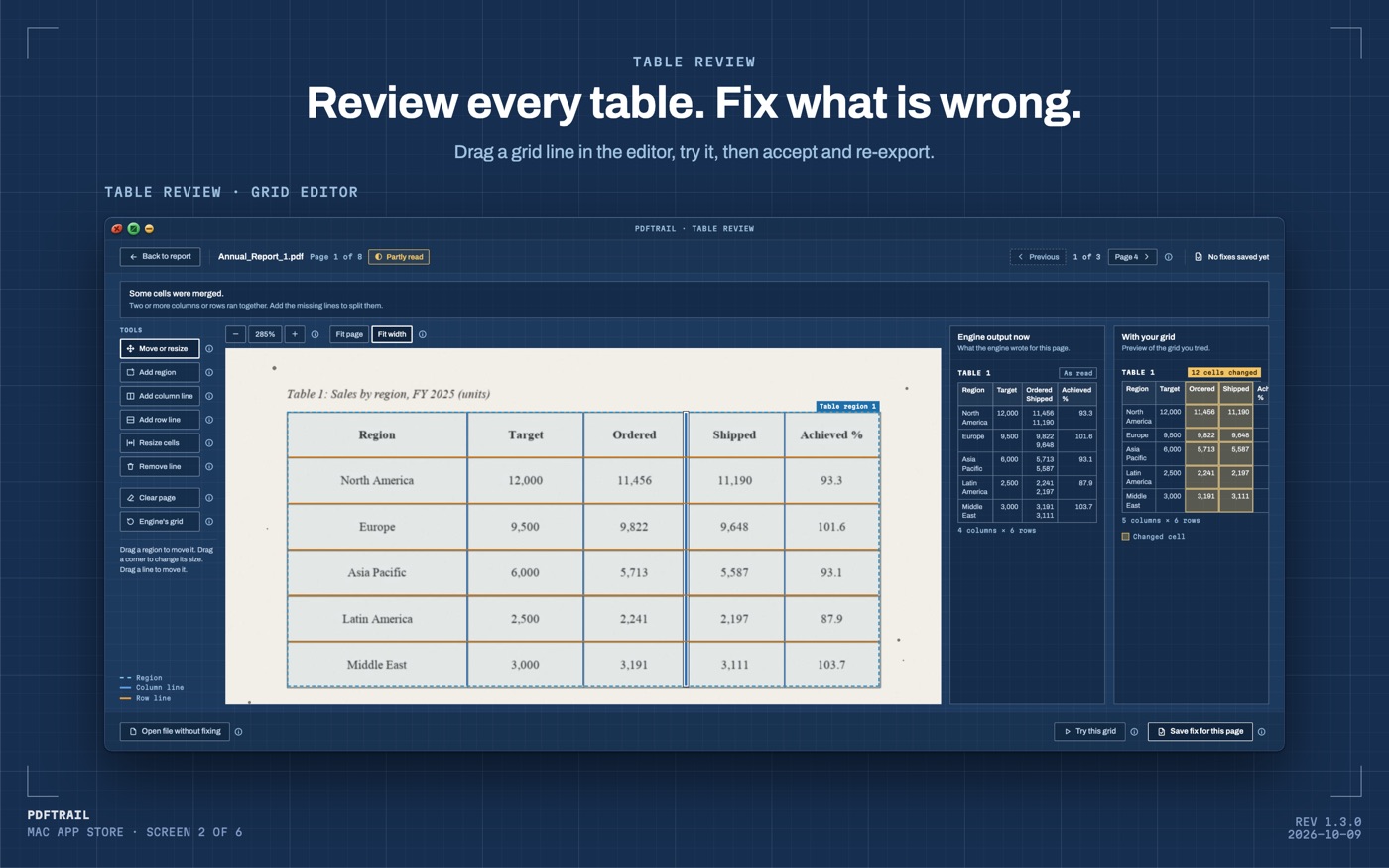
Fixes are saved for that PDF and apply again the next time you convert it. You can also open the files as they are, without fixing anything.
Why a table that spans pages is the one to check
In a long PDF, the table you want is rarely politely short. It starts at the bottom of one page and finishes on the next, and sometimes it runs for several. A PDF has no idea those pieces belong together. Each page stores its own fragments.
When a table continues on the next page, PDFTrail joins the pieces into one table in Excel, Word and Markdown, with one header row. A row cut by the page break becomes one row again.
I still look at the seam. In Table Review, find the bottom row of one page and the top row of the next, and read both against the pages. If the join is right, the table reads as one. If a row went missing there, you will see it in a minute, rather than in a total that does not add up.
When the page needs a second look
In a long PDF, expect a few pages that need one. A table can be read in part, or not at all. Table Review opens by itself on exactly those pages, so you land on the problem without paging through the file. That is also where the grid editor earns its keep. Try the new grid, look at the preview of your grid beside the engine's reading, and save the fix only when your grid reads better.
The free version has one limit that matters for a long table. After the 10 free Excel exports, Excel export keeps working with the first 15 rows of each table. The sidebar shows how many free exports are left for each format.
Reading the table you took
Once the table sits in its own workbook, do two quick checks. Count the rows against the page. Then add up one numeric column and check it against the printed total, when the page has one.
I can't tell you what your table looks like, because I don't have your file. A table with merged header cells reads differently from a plain grid of numbers. The grid editor is the place to separate cells that ran together, and Table Review flags a page that was only partly read.
On a scanned page, read the digits against the print. OCR is good but not infallible, which is why Table Review shows the table beside the page it came from.
Back to the 174 pages
A 174-page file is a lot of PDF, and most of it will never matter to you. The pages that do are the ones you open, with the table beside the page.
To go wider, PDF to Excel on Mac covers whole files, and why a PDF has no tables explains what PDFTrail rebuilds before it shows you one.
Find the page first, and the rest of the PDF stops being your problem.
FAQ
Can I convert only the page that holds my table?
PDFTrail converts the PDF you open and finds the tables in it, and Table Review shows each one next to its page. You then take the table you want from the Excel file.
What if my table runs over several pages?
PDFTrail joins the pieces into one table with one header row, and a row cut by the page break becomes one row again. Check the join in Table Review, at the last row of one page and the first row of the next.
What if PDFTrail misses the table or splits it wrongly?
Open the grid editor on that page. Draw a table region, drag the grid lines into place or add column and row lines, try the grid, then save the fix. Accept and re-export writes the files again.
Does the PDF leave my Mac?
No. Everything runs on your Mac. Nothing is uploaded, and there is no account or sign-up.
Is a long table a problem on the free version?
After the 10 free Excel exports, Excel export keeps working with the first 15 rows of each table. Conversions and on-screen Table Review stay unlimited. The full version is $24 one-time.
Related guides
- PDF to Excel on Mac: The Complete Guide (2026)
- How to Convert a Bank Statement PDF to Excel on Mac
- SBI Bank Statement PDF to Excel on Mac
- HDFC Bank Statement PDF to Excel on Mac
- ICICI Bank Statement PDF to Excel on Mac
Get PDFTrail
PDFTrail is on the Mac App Store — download it, try it on your own file, and pay only if it earns its keep.
GET PDFTRAIL — MAC APP STORE