Field guide · 2026-09-30
GST Invoice PDF to Excel on Mac: Batch Convert
A month's supplier invoices sit in one folder on your Mac: a dozen PDFs, no two laid out the same way. One came out of Tally, one off a supplier's billing portal, one is a scan of a printed copy a supplier's clerk emailed you. Turning that folder into a GST invoice PDF to Excel job you can actually reconcile means handling each layout, without retyping a single row.
Retyping the dozen of them is an evening you don't have, and it invites the one transposed digit that turns up later, at return time. Copying text out of Preview or Acrobat and pasting it into Excel doesn't help either. A PDF has no rows and columns inside it, only short runs of text sitting at coordinates on the page, so the paste comes out as one long, unsorted line. Uploading the folder to a converter site solves the layout problem and creates a new one: it hands your supplier names, GSTINs and invoice values to a server you didn't choose. I wouldn't send a month of GST invoices there, and I don't think you should either.
PDFTrail is my app. It reads the text and its position straight out of each file, works out which fragments sit on one line and where the columns break, and does the batch on your Mac. Nothing leaves the machine.
Why every supplier's invoice looks different
Two suppliers can register the same fields with the GST portal and still produce invoices that look nothing alike, because the layout comes from whatever billing software each one runs. One supplier's invoice puts the taxable value and tax amount in two tight columns on the right. Another spreads the same numbers across a wider table with a separate line for each tax head. A third prints a narrow slip with the numbers stacked instead of side by side. The fields are similar; the geometry is not, and a tool that reads by fixed column position will get some of these right and quietly mangle the rest.
Born-digital invoices versus a scanned copy
Most of the invoices in that folder are born-digital: generated by billing software and saved or emailed as a PDF, which means the text is stored as positioned characters, not a picture. PDFTrail reads that text directly. There is no OCR step and nothing to guess, because the letters and their coordinates are already sitting in the file.
The scanned one is a different document. A photo of a printed invoice, or a page put through an office scanner, stores pixels, not text, and pixels carry no letters. PDFTrail runs OCR on that page, on your Mac, and Table Review shows you the table it detected once the conversion is done. OCR is good on a clean invoice. It is worth a look before you trust the row.
What a GST invoice has to show
Layouts differ, but the substance behind them does not: a supplier name and address, an invoice date, the line items being billed, a taxable value, and the tax amounts charged against it. The GST portal's own returns section lists an Invoice Management System among its return processes. That's a reminder that this same invoice, once it leaves your folder, is also expected on the other side of the transaction. I can't tell you the exact column order your suppliers use, because it varies by supplier and by billing software, and I don't have their invoices in front of me.
GST invoice PDF to Excel, one folder at a time
- Click "Open PDF", open the invoice folder in the dialog, and select all the PDFs in it, not one file at a time. For one workbook, turn on "Combine into one file per format".
- Wait for the read. Born-digital invoices are read directly. A scanned one runs OCR first, on the Mac.
- Open Table Review and check, invoice by invoice, that the supplier name, date, and amounts landed in the right columns. It opens by itself when a page needs a look; otherwise, click "Review tables" in the toolbar.
- Open the .xlsx files, one per invoice, or the one combined workbook. Repair a wrong table in the grid editor, then choose "Accept and re-export".
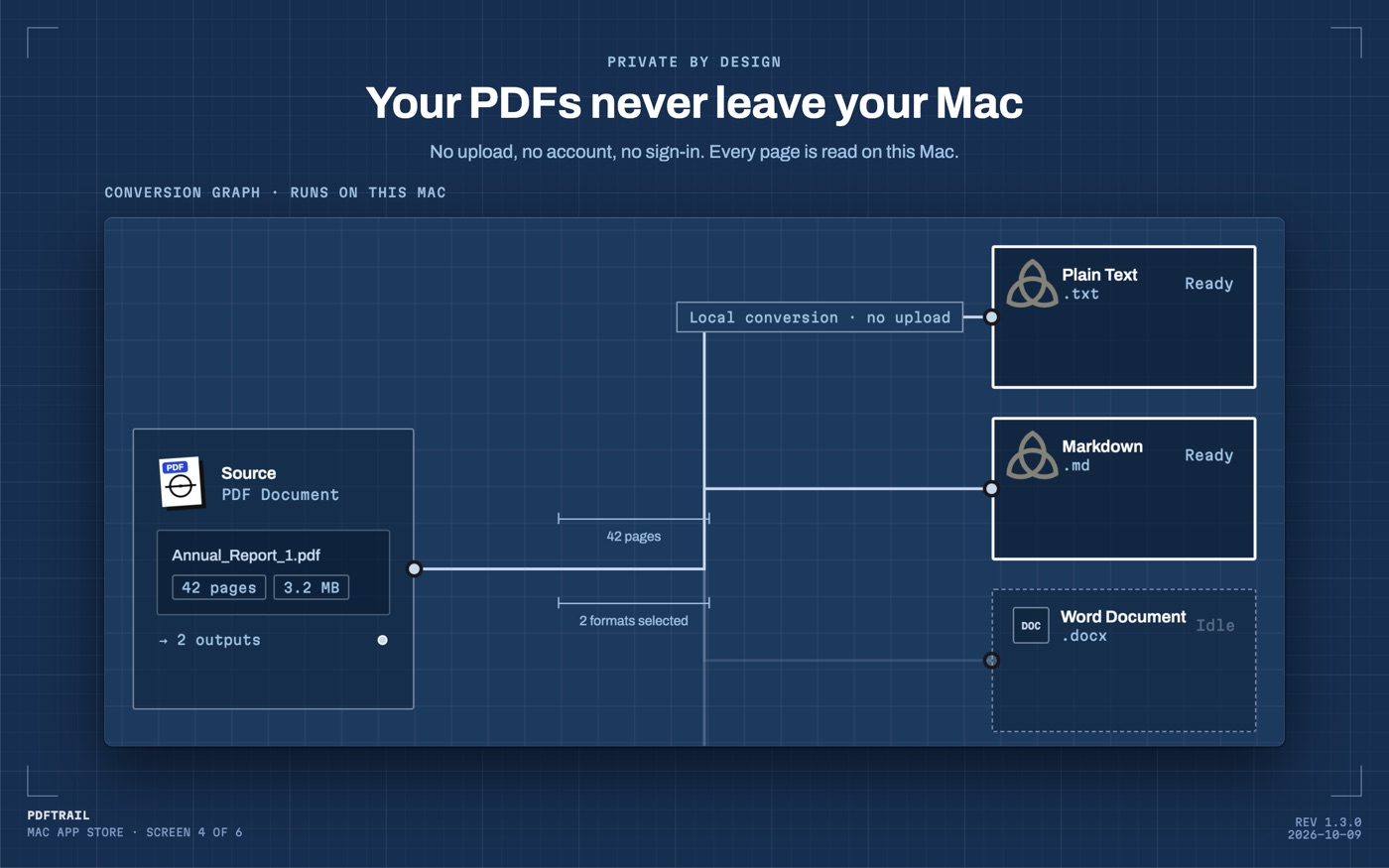
A folder of twelve invoices from four suppliers is twelve separate files, and each one can fail in its own way. Table Review comes up for any page that needs a look. For any other file, use the "Review tables" button. That check is the step I'd never skip, and I wouldn't want an app that hid it from me.
What to check in the combined sheet
Once the files are open, walk each invoice's table the same way. Add the line items together and compare the sum against the taxable value printed on the invoice. Then add the tax amounts and compare that total against the tax shown on the page. Where those two additions don't land on the printed figures, you've found a row that needs a second look, and you've found it before it goes anywhere near a return.
This is a check you do in the spreadsheet, invoice by invoice, not something the export decides for you. It takes longer on the invoice with nine line items than on the one with two, and it's worth doing on both.
Excel for Mac won't shortcut this for you either. The "From PDF" import in Power Query, the one that reads a PDF table directly, was built for Windows and was never brought to the Mac version, as Microsoft's own forum confirms. If you've gone looking for that button on a Mac, that's why it isn't there.
Back to the folder
The dozen PDFs are still a dozen different suppliers, and they'll still arrive that way next month. What changes is how long the folder fights you. Batch conversion gets the layouts read; the review screen catches what OCR got wrong on the scanned one; the addition catches what a layout got wrong in a way OCR never would. None of that shrinks a supplier's invoice down to your bank statement's shape, and it isn't meant to. If you're comparing converters for this kind of job, the best PDF to Excel converter for Mac guide sets out what each one needs. The PDF to Excel on Mac guide is the wider map this post sits inside. A bank statement is the same problem in a narrower folder, and the ICICI statement guide walks that version of it.
Add the line items up anyway. It's a habit worth keeping, whichever supplier sent the file.
FAQ
Can PDFTrail read a scanned GST invoice, not just a downloaded one?
Yes. A scanned page has no text layer, so PDFTrail runs OCR on your Mac. After the conversion, Table Review shows the detected tables, so you can check them before you rely on the file.
Do I need an internet connection to convert a folder of invoices?
No. Conversion runs on your Mac. Nothing is uploaded, and it works with Wi-Fi off.
Will one export combine invoices from different suppliers into one workbook?
By default each PDF gets its own Excel file. Turn on "Combine into one file per format" and the batch writes one workbook. Its Index sheet shows which file each table came from.
What does PDFTrail cost?
It is free to try, with 10 free Excel exports. The full version is a one-time $24 unlock, no subscription.
What GST invoice fields should I check after export?
Check that the taxable value and tax amounts on each invoice add up to the invoice total shown on the page, before you move on to the next one.
Related guides
- PDF to Excel on Mac: The Complete Guide (2026)
- How to Convert a Bank Statement PDF to Excel on Mac
- SBI Bank Statement PDF to Excel on Mac
- HDFC Bank Statement PDF to Excel on Mac
- ICICI Bank Statement PDF to Excel on Mac
Get PDFTrail
PDFTrail is on the Mac App Store — download it, try it on your own file, and pay only if it earns its keep.
GET PDFTRAIL — MAC APP STORE