Comparison · 2026-10-16
Preview Copy-Paste vs a Real PDF to Excel Converter
Open Preview, choose Tools, then Text Selection, and drag across a table in a PDF. A blue band spreads over it, line after line, and by the time the drag reaches the bottom row the whole table looks selected. Copy that, paste it into a blank sheet in Excel, and the columns are gone. Every date, every label, every amount arrives in the order the drag picked it up in, not in the grid you were just looking at.
That gap is what a copy table from pdf to excel mac search is really asking about: what the highlight shows, and what actually lands in the spreadsheet. It is worth understanding before you decide this is an app problem rather than a paper one.
What the highlight is actually following
A PDF does not store a table the way a spreadsheet does, as a grid of cells you can address by row and column. It stores short pieces of text, each one placed at an exact spot on the page, the way a typesetter once pinned individual pieces of type. Whatever software produced the file laid those pieces down in some order, one after another, and that order sits inside the file permanently. It rarely matches how a person reads the finished page.
Preview's Text Selection tool follows that stored order, not the visual grid. Apple's own guide to Preview describes the basic move as choosing Text Selection, dragging over the text, then copying it, the same way you would lift a line out of any document. Preview has no way to know a column boundary sits three centimetres to the left of where the drag currently is. It only knows which piece of text came after which, in the order the file gave it, and that is the order it hands back when you paste.
For an ordinary paragraph, stored order and reading order are usually the same thing, so this never comes up. For a table, the two can pull apart. A page built by software that writes a whole column before starting the next one will paste as one long list, no matter how neatly the rows lined up on screen a moment ago.
When the highlight is the right tool
None of this makes Preview's copy-paste a bad feature. It does exactly what a text-selection tool is meant to do, which is picking up text, not reconstructing a grid it was never shown as one.
A few lines from a table, lifted to check a figure against an email, work fine as plain text. You do not need a spreadsheet for that. Apple's guide documents a second mode built for tables specifically. Hold down the Option key while you drag, and Text Selection switches into a column mode. Apple's own words describe it as useful "for copying a column in a table." That built-in shortcut beats opening another app when one column is genuinely all you want.
Paste earns its place on a one-off too. A single invoice, glanced at and then forgotten, does not justify a second app. The trouble starts when the table is one of many, or the columns matter enough that untangling the writing order by hand starts costing real time.
Copying a table from a PDF into Excel on a Mac, step by step
That is where a table-aware converter takes over, because it starts from a different question: which pieces of text sit in the same row, and where the column lines actually fall. It answers that using where the text sits on the page, not the sequence it was saved in.
PDFTrail is my app, and this is the problem it was built to solve. For a PDF that already has a text layer, the text is read directly from the file, with the position of every character. No OCR guessing. For a scanned page, where there is no stored text at all, it runs OCR on the Mac first, before it can even look for rows and columns.
The steps stay short.
- Click Open PDF and pick the file in the Open dialog. To convert a folder, open it in the dialog and select all the PDFs in it.
- Convert to Excel (.xlsx) and let it read the file. A born-digital PDF is read straight from its own stored text; a scanned page gets OCR on the Mac first.
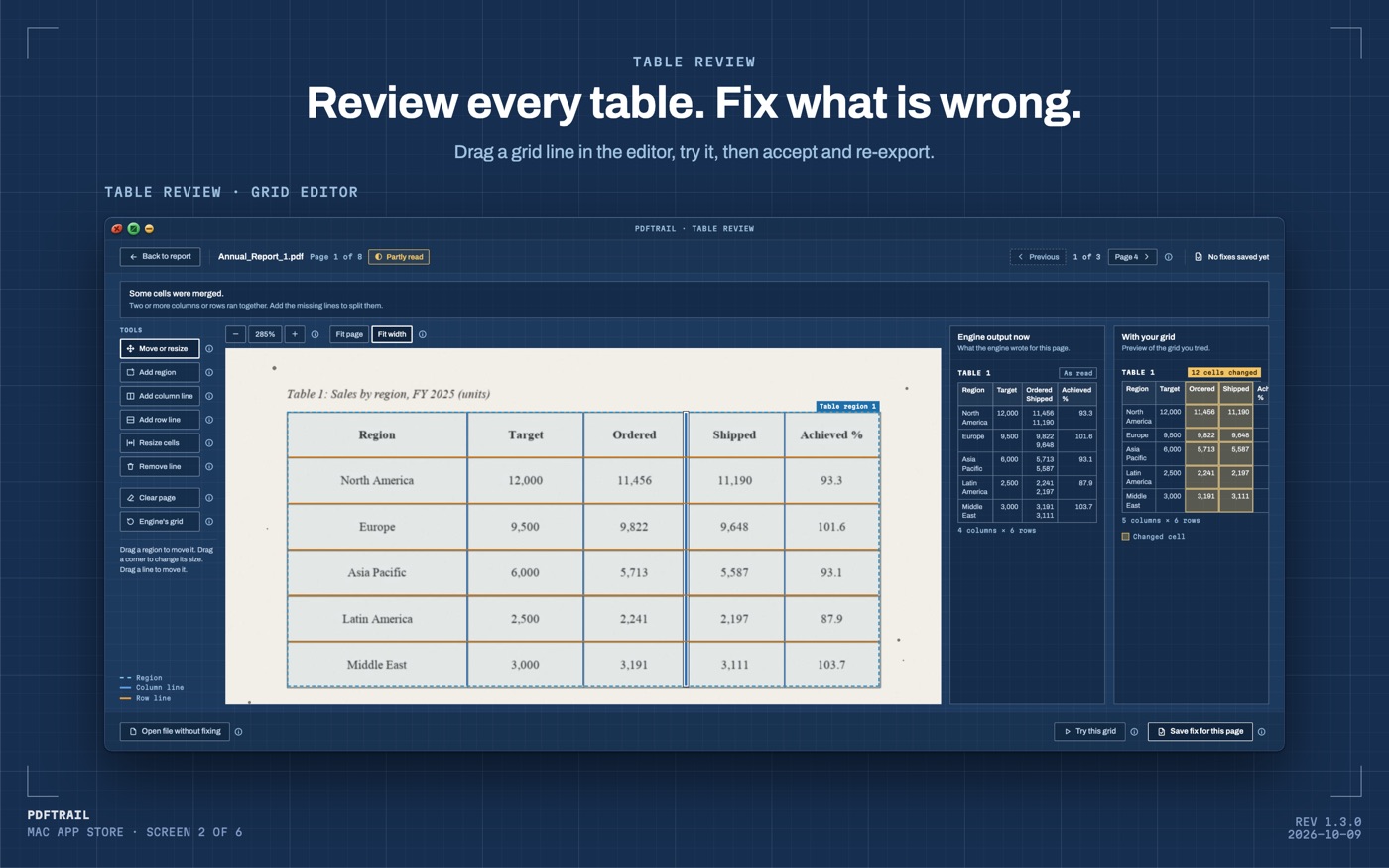
- Check the Table Review screen. If PDFTrail only partly read the tables on a page, or did not read them, this screen opens by itself. At other times, click Review tables in the toolbar. Confirm each row holds what the source row holds, and that a column of dates has not drifted into the amounts.
- Open the .xlsx, with the grid already in place. If a table came out wrong, move its grid lines and click Accept and re-export.
Back to the highlighted table
Go back to Preview and select that same table again, and the highlight still runs the same way, in the order the file wrote it, because that is what the tool is built for. There is no defect to report there.
What changes is the question you ask before you drag. A short passage, or a single column pulled out with Option held down, is a job Preview already does well. A whole table you plan to sort, total, or hand to someone else is a different job. It wants software that reads the page by position, not by the sequence some other program once wrote it in.
If your file is not a single table but a whole document type, the PDF to Excel guide walks through the born-digital and scanned cases side by side. The seven-tool comparison puts Preview, PDFTrail, and the rest of the field next to each other. If Excel itself is where you keep getting stuck, Excel for Mac's missing PDF import explains why the button you are hunting for was never built for your machine.
The highlight was never wrong. It was only ever answering a question about text, not about tables.
FAQ
Why does copying a table from a PDF in Preview put everything in one column?
Preview's Text Selection tool follows the order text was written into the PDF, not the table's visual columns, so a paste can run a whole row together instead of splitting it apart.
Can I copy just one column from a PDF table in Preview?
Yes. Hold Option while you drag with Text Selection, and Preview switches to a mode built for exactly that, useful for pulling one column out of a table.
When is Preview's copy-paste good enough for a PDF table?
For a few lines, a single column, or a page you will only read once, a plain-text paste is faster than opening any other app.
What does PDFTrail do differently from Preview's copy-paste?
It reads a PDF's text by its position on the page rather than by writing order, groups it into rows and columns, and writes the Excel file. Table Review then shows each table next to its page, so you can check it.
Does PDFTrail need an internet connection to convert a PDF table?
No. It runs on your Mac, with no upload and no account, whether the PDF already has a text layer or needs OCR first.
Related guides
- PDF to Excel on Mac: 7 Tools Compared Honestly
- Excel for Mac Has No From PDF Import: What to Do Instead
- Tabula vs PDFTrail: Extract PDF Tables on a Mac
- camelot and pdfplumber vs a Mac App for PDF Tables
- Adobe Acrobat Export PDF to Excel vs On-Device on Mac
Get PDFTrail
PDFTrail is on the Mac App Store — download it, try it on your own file, and pay only if it earns its keep.
GET PDFTRAIL — MAC APP STORE