Field guide · 2026-10-17
Photographed Table to Excel on Mac (Phone Photo PDF)
Picture a rate card taped to the wall at a courier counter: laminated, one row per weight band, one column per delivery zone. It was printed once and never published anywhere else. There is no file to download. The only way to take it home is to photograph it.
Call it a photo of table to excel mac problem, because that is the search a person runs before they know what actually failed. A phone held up at chest height, aimed slightly upward at a card taped above the counter, records a straight top edge as a soft diagonal. The lens and the card are no longer square to each other. Laminate throws the ceiling light straight back in one bright streak across two of the columns. Two years of tape at the corners has let the middle of the sheet lift a little off the wall, so that patch reads darker than either edge under the same light. None of this stops a person standing there from reading the card. It is exactly what stops a Mac from reading it later, from the photo alone.
What a phone photo does to a printed table
A PDF built from a phone photo is a picture wearing a file extension, nothing more. There is no text under the price list, no digits waiting to be selected, only a grid of coloured dots that happens to look like numbers to a person standing at the counter. Perspective, glare, and a page that is not flat all change what those dots look like, and OCR has to guess at the shape hiding inside them. A crooked photo does not just look untidy. It changes the actual shape a piece of software has to read as one digit rather than another.
That is true of any phone photo of a printed page, not only a rate card. A table printed inside a report or a book has the same problem when a phone catches it. The gutter near the spine curves the row of text, and light from one side turns half a row too dark to read cleanly. A notice board under glass adds its own reflection on top of that. The document changes and the failure mode does not. A photo carries no text, so something on the other end has to decide what the pixels mean before a spreadsheet can hold a single number from it.
Why a document scan beats a plain photo
One decision, made before the file ever reaches a Mac, already shapes how much guessing OCR has to do afterward: whether the photo was taken as a plain photo or as a document scan. The Notes app on iPhone scans documents rather than only photographing them, and Apple's own guide describes what that mode does. Hold the iPhone steady over the page. The camera captures the document by itself once it has found the edges, and the corners stay open to a nudge afterward if they land wrong. A plain photo skips all of that. It keeps whatever rectangle sat in front of the lens, tape marks and counter edge included, and leaves finding the actual page to whatever reads the file next.
A document scan does one more useful thing later on. It saves the page as a flat rectangle rather than a photo with a wall around it, so the table sits square in the file before OCR looks at a single pixel. That does not fix glare on laminate or a lift in old tape. It does remove one whole source of guesswork before the Mac even opens the file. The general guide to scanned PDFs on a Mac deals with the other case, a file that already carries a text layer because it was downloaded, not photographed. The difference between the two starts right here.
Getting a photo of table to excel mac conversion into a spreadsheet
Once the PDF is on the Mac, PDFTrail checks it the way it checks any file: does this page already store text, or only pixels? A photographed table has no stored text, so the app runs OCR itself, on the Mac, before it tries to work out which fragments share a row and where the columns fall. PDFTrail is my app. Every part of this, from opening the file to writing the spreadsheet, happens without sending the photo anywhere.
- Click Open PDF and choose the photographed PDF in the Open dialog.
- Convert to Excel (.xlsx) and wait while OCR reads the page on the Mac; a page that already stores text skips straight past this step.
- Open Table Review, which comes up by itself when a page needs a look. Match the rows and columns against the wall the photo came from.
- Open the .xlsx once the table on screen matches the table on the wall. If it does not, fix the grid and click Accept and re-export.
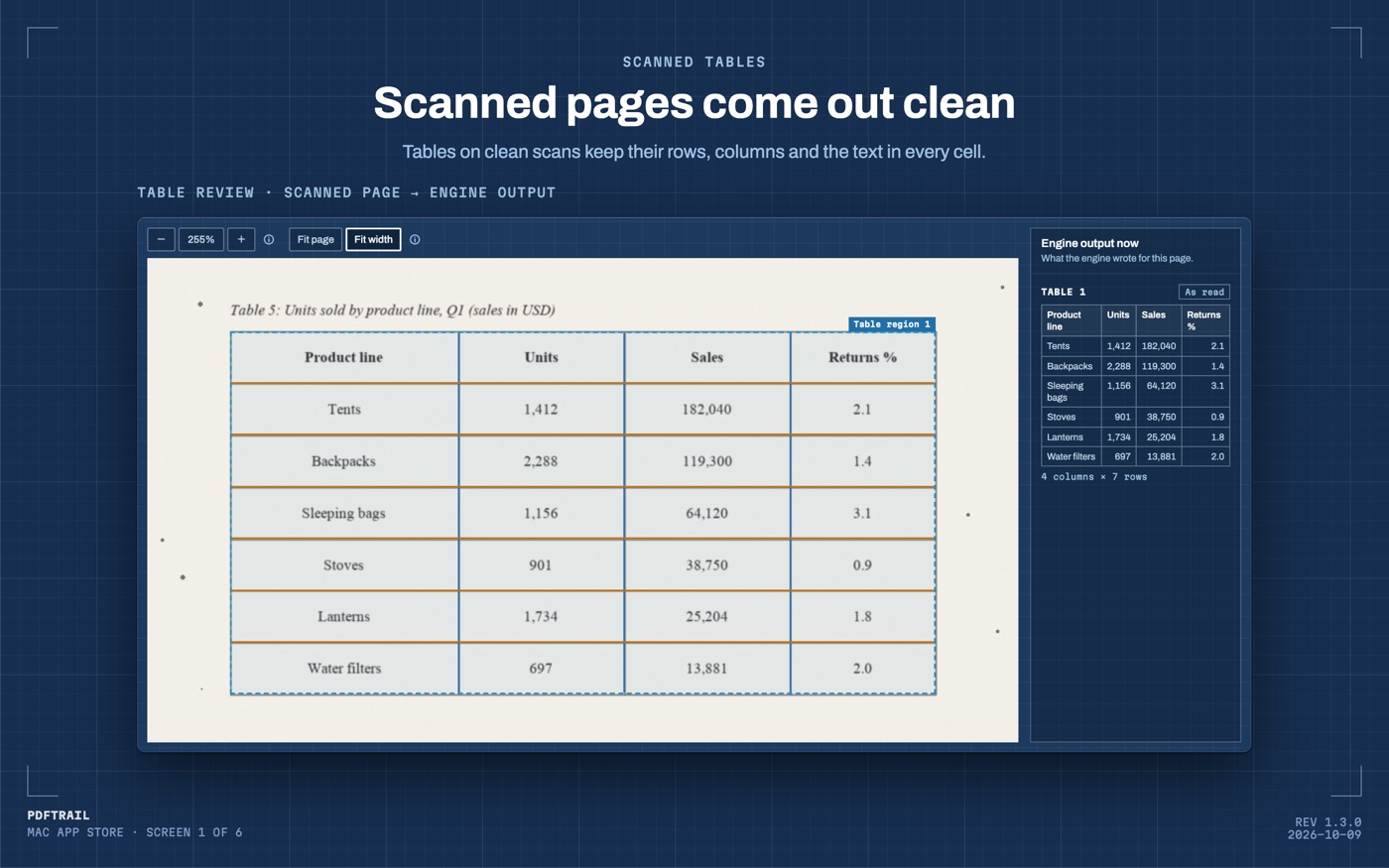
A whole notice board of price lists, photographed one card at a time, goes through the same four steps in a batch run. Choose every PDF in the Open dialog, and the review screen comes up by itself for any page that needs a look. The mechanism behind that review step is the subject of how PDF table extraction actually works. It also explains why the engine treats a doubtful table as worse than a missing one.
What to check, and what this will not do
Check the row count first. Count the weight bands on the wall, then count the rows in the export. A band that fell inside a glare streak or across a fold is the one most likely to be missing. Check the numbers next, especially any price sitting inside a bright streak or a shadow in the photo, since that is exactly where a guess was hardest to make.
PDFTrail does not read handwriting. A price added to the card in pen, a correction scrawled in the margin, a note taped over an old row: none of that is something OCR here attempts, on this photo or any other. If the card is printed and the photo is reasonable, OCR has a real shot at every number on it. A handwritten addition still needs typing in by hand, the same as it always did. For more on what a rough image does to that guesswork, see the post on teaching the engine to read bad scans.
Back to the rate card
The card at the courier counter is still up there, still laminated, still catching the same ceiling light. A document scan of it, taken straight on with the phone held level, turns into a spreadsheet of the same sixty prices the counter staff already have memorised, ready to check against the wall. It skips the two years of glare and tape lift a plain photo would have kept. Nobody at the counter needed to retype a single number to get there.
FAQ
Does a photo of a table need to be perfectly straight to convert?
No. A slight tilt or a shadow does not stop the conversion, though a flatter, straighter photo gives OCR less to guess at.
Why does a document scan work better than an ordinary photo?
A document scan finds the page edges and captures a flat rectangle of just the page, so the table starts square before OCR reads it.
Do I need to upload the photo anywhere to convert it?
No. OCR and conversion both run on your Mac. The photo never leaves the device.
Will PDFTrail read a price added by hand to a printed card?
No. It reads printed and typed text. A handwritten addition is out of scope, on this photo or any other.
What if the exported table is missing a row?
Open Table Review and match it against the photographed page. A missing row usually sits on a fold, a glare streak, or a page edge.
Related guides
- Scanned PDF to Excel Mac: OCR Without Uploading
- Convert a Scanned Bank Statement to Excel on Mac
- Fix OCR Table Errors on Mac: Five Shapes to Look For
Get PDFTrail
PDFTrail is on the Mac App Store — download it, try it on your own file, and pay only if it earns its keep.
GET PDFTRAIL — MAC APP STORE