Field guide · 2026-09-25
Scanned PDF to Excel Mac: OCR Without Uploading
One page in our test set holds nothing but scanner noise. No form was ever printed on it, and no tool that turns a scanned PDF into a spreadsheet on a Mac should find one there. Early in the engine's life, ours did anyway. Not once. Twenty-six times, across a batch of pages exactly like it, each one a neat grid of rows and columns built out of noise that never held a number to begin with.
In a spreadsheet, a fabricated table looks exactly like a real one. Nothing about it says "guess." Someone sums the column, someone books the figure, and the mistake is now downstream of the person who could have caught it. We killed all twenty-six, and the rule that came out of that run has stood ever since: a fabricated table is worse than a missed one. A missed table tells you to look again. A fabricated one tells you nothing is wrong.
That is the real risk behind any scanned PDF to Excel mac conversion, and it is worth naming before the how-to. It isn't only our engine's history. Every OCR tool is guessing at pixels, and a guess can be confident and still be wrong.
Turning a scanned PDF to Excel mac file, without a text layer
A PDF built by software, a statement downloaded from a bank or an invoice made in accounting tools, stores each character with a position on the page. Reading it is a matter of finding those positions and putting the right fragments in the right cells. A scan carries none of that. It is a photograph of ink, saved with a .pdf file extension, and the file holds no characters at all, only pixels.
To read a scan, something has to look at those pixels and decide where the letters are: this shape is a 3, this line of shapes ends here, the next column starts there. That is optical character recognition, or OCR, and it is a long chain of decisions, not a lookup table. Any single decision in that chain can be wrong. A blurred digit, a stray mark, or a line of print running into the spiral of a binder can all tip a decision the wrong way.
That is why PDFTrail shows you the table it built, next to the source page, in Table Review after the conversion. You are looking at a draft, not a finished answer, so check it before you rely on the file.
The real options for a scanned PDF
Retype it. For one short page this is fine, and it costs you nothing but a few minutes. Past a handful of pages, retyping every row invites the same kind of slip OCR makes, minus any step that flags it.
Upload it to a converter site. Plenty of sites will run OCR for you, at the cost of sending your document to a server you don't operate first. Fine for a public form. Worth a second thought for anything with an account number or a name on it.
Open it in a tool built for text layers, not pixels.
Tabula is a well-known free tool for pulling tables out of PDFs. Its own site says plainly: "Tabula only works on text-based PDFs, not scanned documents." A scan gives it nothing to read, because there is no text layer under the image.
Run OCR on the Mac itself. This is the route PDFTrail takes. PDFTrail is my app, and it reads the scan on your Mac, with no upload and no account.
Converting a scan on your Mac
- Click Open PDF and choose the PDF.
- Let the app check the page. A page with no text layer triggers OCR; a page that already stores text is read directly.
- Wait for OCR to finish reading the scan. This happens on the Mac, and nothing is sent anywhere during the step.
- Look at Table Review. It opens by itself when a page needs a look. At any other time, use the Review tables button in the toolbar. Check that the rows and columns match what the scan actually shows.
- Compare the table against the scan once more and check that the totals add up.
- Open the Excel file once the table looks right. If you fixed the grid on any page, click Accept and re-export first.
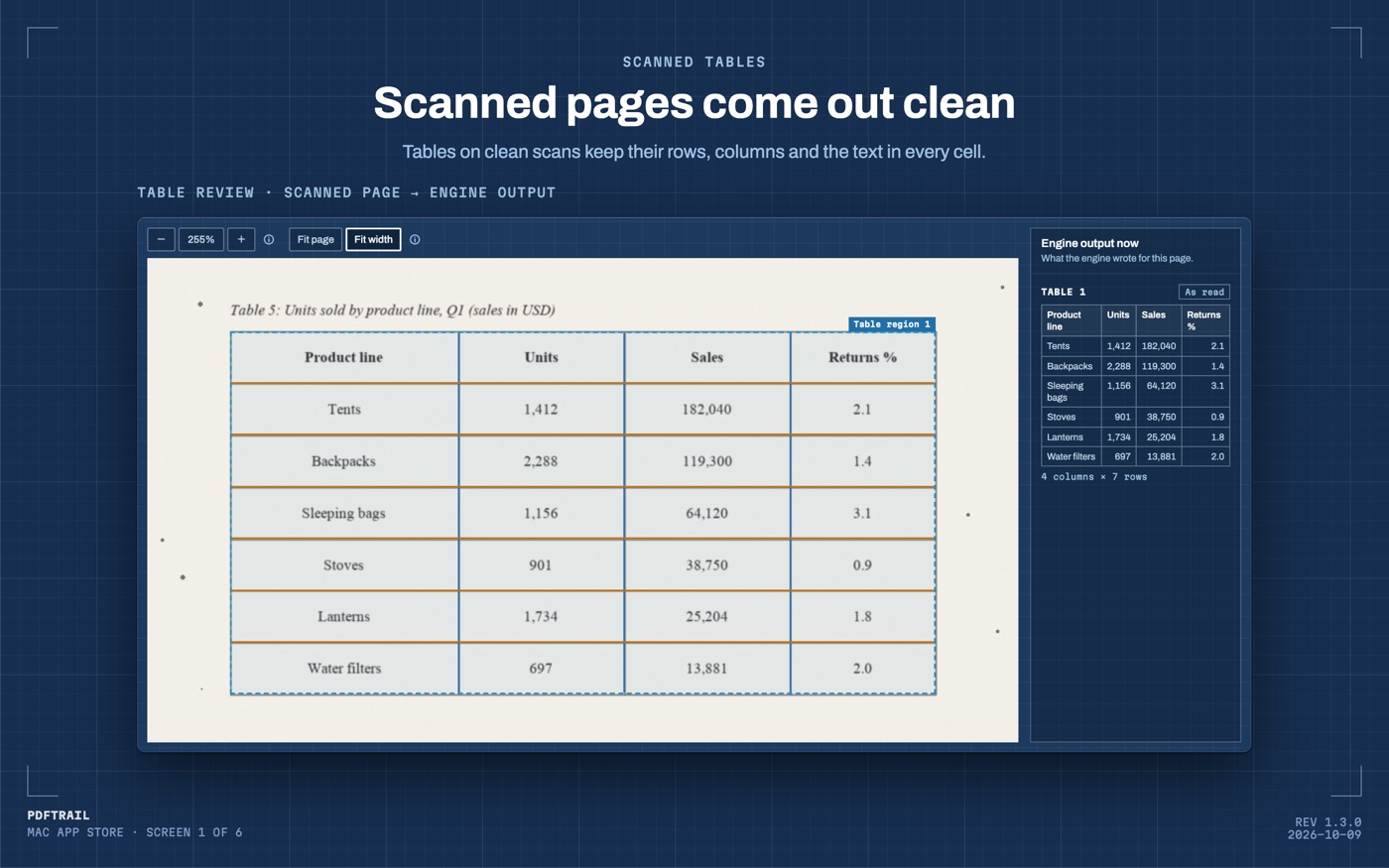
Skipping step four is the one shortcut I'd argue against. It is the only point where you, not the software, decide the table is right.
What a clean scan gives OCR
OCR does its best work on a page that gives it a clear shape to read, and a few habits help regardless of which app does the reading. Keep the page flat, since a curl near the spine bends the line of text the software has to follow. Shoot it straight on, because a tilted angle stretches letters unevenly across the row. Use even light and avoid deep shadows, which a camera can turn into marks that were never on the page. None of this guarantees a clean read. It just hands OCR a fairer page to start from, which means fewer cells for you to check at the review step.
What PDFTrail won't do
It will not read handwriting. A signed form, a note in the margin, a field filled in by hand: none of that is something OCR here attempts. The review screen won't rescue a page it was never built to read. If your document is printed or typed, even on a bad scan, OCR has a real shot at it. If it's handwritten, look elsewhere.
We wrote at length about the ways a scan can go wrong and what changed in the engine, in teaching the engine to read bad scans. It covers the run that produced those twenty-six tables. Version 1.2, covered in the release notes, extended OCR to images sitting inside otherwise text-based PDFs, the same reasoning applied one layer deeper.
Back to the noise page
That page still sits in the test set, and it still produces nothing: no table, no guess, just an empty review screen for that page. That is the correct answer for a page with nothing on it, and it took twenty-six wrong answers to learn to prefer it.
A real scanned statement or invoice will usually have something on it worth reading, and OCR will usually read most of it well. The review screen is there for the parts it doesn't, page by page. It does not fix a bad read for you. It puts it in front of you, next to the source page, on the one page it happened, before it becomes a row you trusted without looking. That costs you one look before you rely on the file, and it is a smaller cost than a wrong number two months into a spreadsheet you already forgot to check.
FAQ
What counts as a "scanned" PDF?
A page with no text stored inside it, only an image of text. A photocopy, a fax, or a phone photo saved as a PDF all work this way.
Why can't I just select and copy the text?
There is no text to select. A scan is a picture, and a picture has no characters underneath it for your Mac to highlight.
Does PDFTrail read handwriting?
No. It reads printed and typed text on a scan, on your Mac. Handwritten pages are out of scope, and no setting changes that.
Do I need to be online to convert a scan?
No. OCR runs on your Mac. The file never leaves the device, and no account is needed.
How do I know the OCR read a number correctly?
You check. Table Review shows the table next to the source page, so you compare the two and check the totals first.
Related guides
- Convert a Scanned Bank Statement to Excel on Mac
- Fix OCR Table Errors on Mac: Five Shapes to Look For
Get PDFTrail
PDFTrail is on the Mac App Store — download it, try it on your own file, and pay only if it earns its keep.
GET PDFTRAIL — MAC APP STORE