Field guide · 2026-09-29
Convert a Scanned Bank Statement to Excel on Mac
Someone photographed a printed statement on a phone and saved it as a PDF. Open the file and the page looks fine: readable, a little curved where the phone caught the paper at an angle, one corner sitting in a shadow. Nothing about it looks broken. But a machine has to find digits in that page, and the curve and the shadow are its whole problem. Turning this scanned bank statement to Excel starts with understanding why.
What the phone sees, and what the app has to do with it
A PDF built this way stores a photograph, not text. There is no character behind any digit, no stored "7" waiting to be read off the page. There is only a grid of pixels that happens to look like a 7 to a person. OCR is the step that turns that grid back into characters. It works by guessing at shapes: a rounded blob near a straight line probably reads as a 6, a gap in the loop might make it an 8. Most of the time the guess is right. A curved page bends the shapes it is guessing at. A shadowed corner hides some of them. The guesses get harder exactly where the photo is weakest.
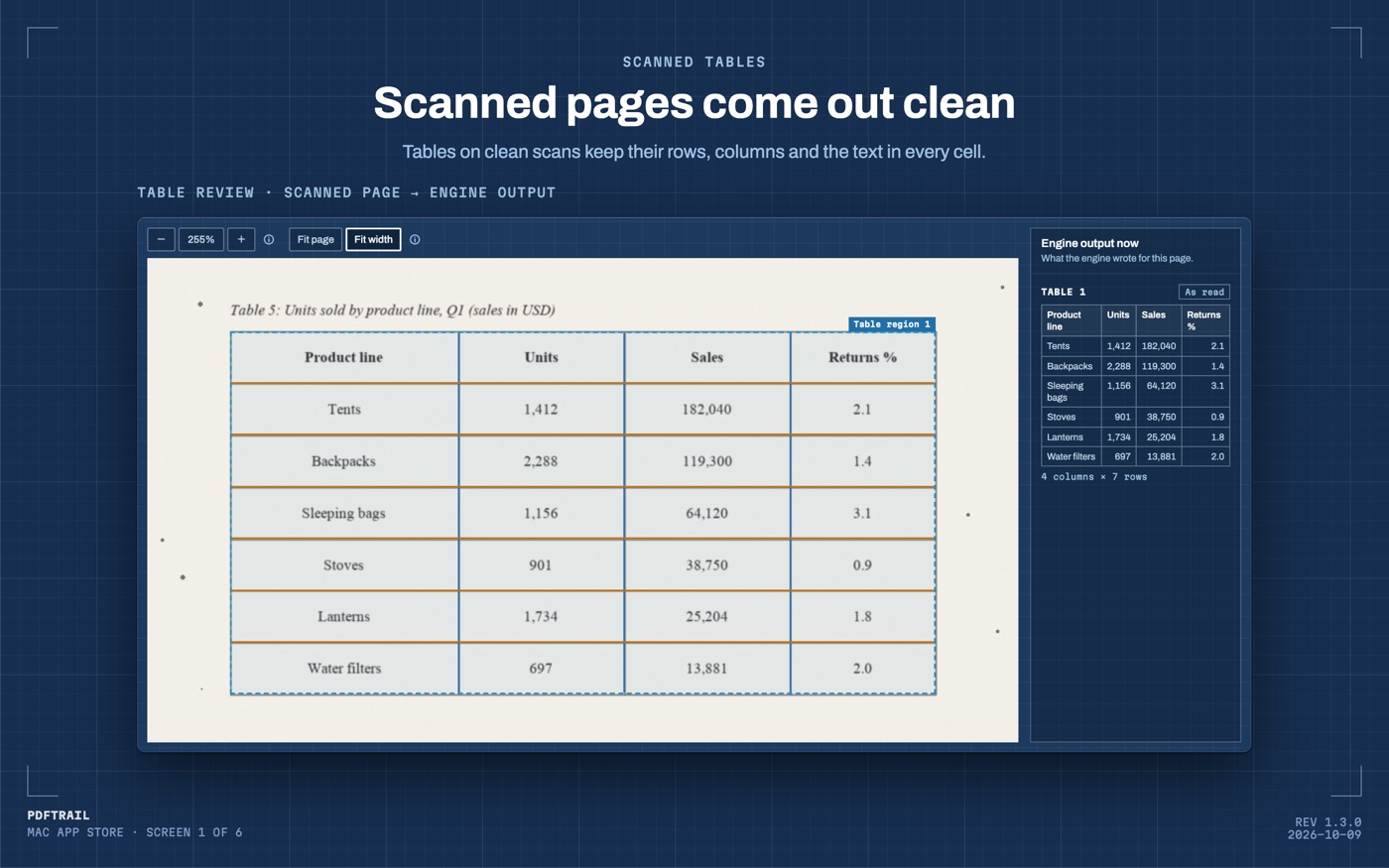
Because a guess can be wrong, the app lets you check it. PDFTrail is my app, and after the conversion Table Review shows each detected table on screen, beside the page it came from. A page that needs a look gets it without a click, and the "Review tables" button reaches it at any other time. Every row and column sits the way OCR read them, so you check the shape of the table before you rely on the file. You read it against the photo, row by row, the same way you would check any number a stranger read out to you. Add up a column and see whether it matches the printed total.
Converting a scanned bank statement to Excel, step by step
- Click "Open PDF" and choose the photographed PDF.
- The app checks for a text layer, finds none, and runs OCR on your Mac.
- Open Table Review and look at the detected table. Match dates to the date column, amounts to the amount column, and count the rows against the printed page.
- Look again at any digit that is hard to read, and check it against the original photo.
- Rely on the .xlsx file once the table matches what is on the page. If it does not, fix the grid in the editor and choose "Accept and re-export".
A folder of statements, one photo per month, goes through the same five steps in one batch run. In the Open dialog, open the folder and pick every PDF it holds. Table Review opens by itself only when a page needs a look.
What makes a phone scan easier to read
A flatter page beats a curved one. A curve stretches the letters near the fold, and OCR has to guess at a shape that no longer matches any real character. A straight shot beats an angled one for the same reason: tilt distorts the text unevenly across the page rather than all at once. Even light across the whole page beats a single bright lamp, because a hard shadow can hide the difference between two digits that would otherwise be obvious. None of this needs special equipment. It only needs a flatter page, a straighter angle, and light that reaches every corner.
Apple's own guide to scanning documents in Notes on iPhone shows the same instinct from the other side. The camera waits for the page to hold still and its edges to be found before it captures a document, and you can adjust the corners by hand afterward. A steady page and clean edges are what a text-reading step wants, whatever app takes the photo. The general scanned PDF to Excel guide and the bank statement conversion guide cover the case where a text layer already exists, downloaded rather than photographed.
Do not upload a photographed bank statement to an online OCR site to get a cleaner scan first; that only hands your account number and balance to a server you cannot see inside.
The one check that matters with money
Before you trust the export, sum one column, such as the credit or debit amounts. Compare it with the total printed on the statement. Banks print that total for a reason, and it is the fastest way to know whether a page converted cleanly. If the sum matches, that page is sound. If it does not, open the table next to the photo again and check it row by row until the mismatch turns up. You are not stuck rereading the whole statement for one wrong row.
This check matters more here than on a downloaded statement, because OCR reads pixels on every line, not stored characters on a few of them. A digit that turns out fine costs you ten seconds of a second look. A wrong digit that goes unchecked costs you a spreadsheet you cannot trust. The post on teaching the engine to read bad scans goes further into how the engine decides what a bad scan needs.
Back to the photo
That curved page with the shadow in the corner still converts. The curve and the shadow just mean OCR has more guessing to do, and more guessing means more worth checking before you trust the sheet. Flatten the page next time if you can, keep the light even, and fill the frame with the statement rather than the desk around it. Whatever the photo looks like, you can see the table beside the page in Table Review, and the totals get checked before anyone relies on them.
FAQ
Why does a scanned bank statement need OCR at all?
A scan has no stored text, only a picture of the page. OCR on your Mac reads the shapes and turns them into characters before the app builds a table.
Is it safe to convert a bank statement online?
An online OCR site needs the file uploaded to a server you do not control. For a document with your account details, keep the conversion on your Mac instead.
How do I know the numbers are right after conversion?
Sum a column in the export and compare it with the printed total on the statement. PDFTrail also shows each table beside the page in Table Review, so you can check it before you rely on the file.
What if a photographed page is a bit crooked or shadowed?
PDFTrail still reads it. A flatter, straighter, evenly lit photo gives OCR less to guess at, but a slight tilt or shadow does not stop the conversion.
Does this work without an internet connection?
Yes. Conversion runs entirely on your Mac, including OCR. No connection is needed.
Related guides
- Scanned PDF to Excel Mac: OCR Without Uploading
- Fix OCR Table Errors on Mac: Five Shapes to Look For
Get PDFTrail
PDFTrail is on the Mac App Store — download it, try it on your own file, and pay only if it earns its keep.
GET PDFTRAIL — MAC APP STORE