Comparison · 2026-10-19
Preview Live Text vs OCR for PDF Tables on Mac
Apple's help page for Preview has a tip I like. Hold Option as you select text, and you can copy one column of a table. It works on a PDF that already holds text. A scan holds pixels, which brings up the live text pdf table question: what do Preview's text tools give you on a scanned page, and what is left for you to do?
A scan stores a picture of a page. Nothing in it says "seven" or "Tents". So something has to look at the pixels and decide where the letters are. For a photo or image in Preview, that something is Live Text. Apple's help page describes it as a way to copy and use the text that appears in a photo: you select the text, Control-click, and choose Copy Text. The same page lists Look Up and Translate, and it says Live Text isn't available in all regions or languages. It does not mention tables.
For a scanned PDF, Apple documents a second step. File > Export > Embed Text has Preview recognize the text in an image-based PDF and embed it, so any viewer can select it. The option appears only if Preview found no text in the file. That page does not mention tables either.
Both tools do the first of two jobs. They find the text. Neither page describes the second job, which is turning that text into rows and columns. A table is not only text. It is text plus the alignment between lines, and a PDF stores positioned fragments, not a grid. Copy and paste from Preview loses that structure, and Option-select works around it one column at a time. A page with eight columns takes eight passes, and you line them up yourself.
Live Text does a good deal that Apple's page lists. You can look a word up, translate a line, call a phone number or open a website straight from a photo. None of that needs a table. If your scanned page is a letter or a receipt, Live Text may be the whole answer.
My view is simple. For one number, one line or one address, use Live Text. It is built in and it costs nothing. For a table that has to open in Excel, I want the rows rebuilt, and I want to see them next to the page.
Test it on your own page. Open the scanned PDF in Preview and choose Tools > Text Selection. If Preview lets you select the table's text, copy it and paste it into Excel or Numbers. Then look at what arrived, and compare it with the page. If nothing is selectable, the Embed Text export is the next thing to try.
From a live text pdf table to rows in Excel
PDFTrail is my app. It takes the other route. A page with no text layer gets OCR on your Mac, and then the table is built from the position of the recognized text: which fragments share a row, where the column boundaries fall. Nothing is uploaded and no account is needed.
- Click Open PDF and select the scanned file in the dialog. Select several files for a batch.
- Choose the formats you want. For a table, tick Excel. Press Convert.
- When the run ends, go through Table Review page by page. It shows the table PDFTrail found beside the page it came from. It opens by itself when a page's tables were partly read or not read.
- If a table is wrong, open the grid editor. Nudge the lines, put in any that are missing, or mark where the table sits. Test the new grid, then keep it.
- Press Accept and re-export to write the files again. That uses no free export.
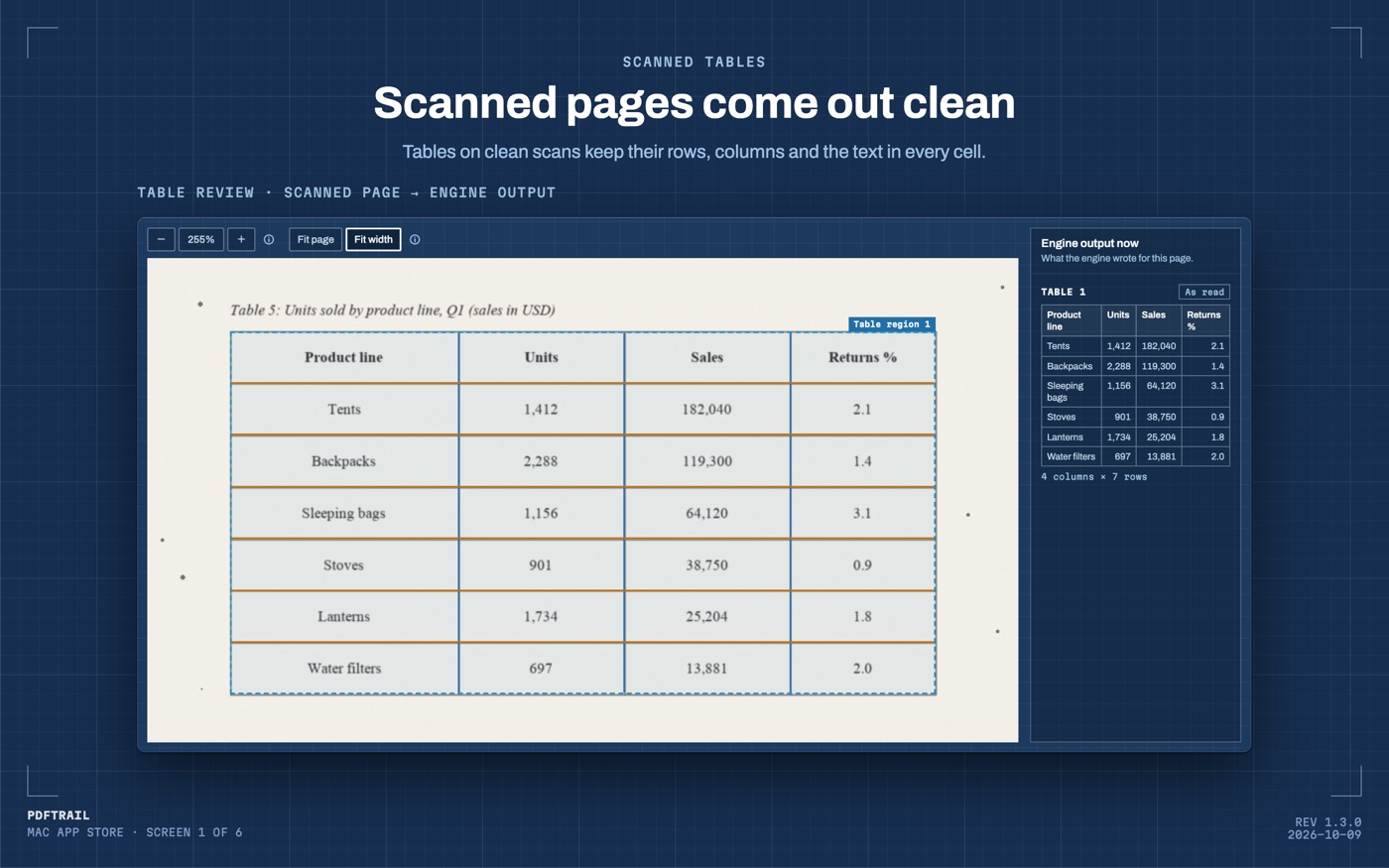
Version 1.3.0 also changed how a scan is read. It keeps more of the words and drops repeated words. Some scanners add a hidden text layer, and PDFTrail checks that layer and reads the page again when its own reading is better.
What this route still gets wrong
OCR is good but not infallible, so the digits are where I look. Pick a handful of figures from the table and compare each with the page. A wrong digit looks exactly like a right one in a spreadsheet.
Finding a table is a separate decision from reading characters, and it can fail in its own way. An early version of the engine invented 26 tables on pages that were pure scanner noise. It reports none there now. The rule I took from that is that a fabricated table is worse than a missed one. If Table Review shows a table on a page that has none, treat it as a defect and do not trust that table.
For the spreadsheet route on scans, start with the scanned PDF to Excel guide. One document type gets its own walk-through in the scanned bank statement guide. For what OCR can and cannot recover, read teaching the engine to read bad scans.
Back to the Option key
Apple's tip is a good one. It gets you a single column from a page that already holds text. A scan is a different case, and a whole table is a bigger job than a column.
Pick the tool for the size of the job. One number, Live Text. One table, anything that shows you the rows.
FAQ
What is Live Text in Preview?
Apple describes Live Text as a way to copy and use the text that appears in a photo. You select the text in Preview, Control-click, and choose Copy Text. Apple's page does not mention tables.
Can I copy a table from a scanned PDF into Excel with Live Text?
You can copy the text if Preview lets you select it. A table is more than text, because the rows and columns also matter. Paste it into Excel and compare the result with the page.
How is PDFTrail different from Preview for scanned tables?
PDFTrail runs OCR on your Mac, rebuilds the table from the position of the text, and shows it next to the page in Table Review. Then it writes Excel, Word, Markdown, JSON or text files.
Is OCR always right?
No. OCR is good but not infallible, which is why Table Review exists. Check the digits against the page after conversion.
Do I need an internet connection?
No. PDFTrail runs on your Mac. Nothing is uploaded, and there is no account.
Related guides
- Scanned PDF to Excel Mac: OCR Without Uploading
- Convert a Scanned Bank Statement to Excel on Mac
- Fix OCR Table Errors on Mac: Five Shapes to Look For
- Photographed Table to Excel on Mac (Phone Photo PDF)
Get PDFTrail
PDFTrail is on the Mac App Store — download it, try it on your own file, and pay only if it earns its keep.
GET PDFTRAIL — MAC APP STORE